
1Getting started
Run the Notalia-Setup.exe installer and follow the steps; no administrator rights are needed. It adds a Notalia shortcut to the desktop and the Start menu. If you prefer not to install, double-click the portable version instead. On the first start Windows associates .ntl Notalia scores with Notalia, so double-clicking one in Explorer opens it. If Windows SmartScreen warns you, choose More info › Run anyway. You can remove Notalia in Windows Settings › Apps; your scores are kept.
On a Mac: download the zip file for your computer from the link in the download e-mail (there is one for Macs with an Apple M chip and one for Intel Macs). Double-click the zip and drag the Notalia app into the Applications folder in Finder. The Mac version is not yet signed by Apple, so before the first start of a version you install by hand run this line once in Terminal (updates from inside the program do this by themselves): xattr -cr /Applications/Notalia.app && codesign --force --deep --sign - /Applications/Notalia.app. Then double-click Notalia; if macOS still says it cannot be opened, choose System Settings › Privacy & Security › Open Anyway. Double-clicking a .ntl file in Finder opens it in Notalia. To remove Notalia, drag it from Applications to the Bin; your scores are kept.
On a Mac the menus are not inside the window but in the menu bar at the top of the screen; the menu names in this manual (File, View, Help…) are the same there. Shortcuts in this manual are shown the Mac way: ⌘ Command, ⌥ Option, ⇧ Shift.
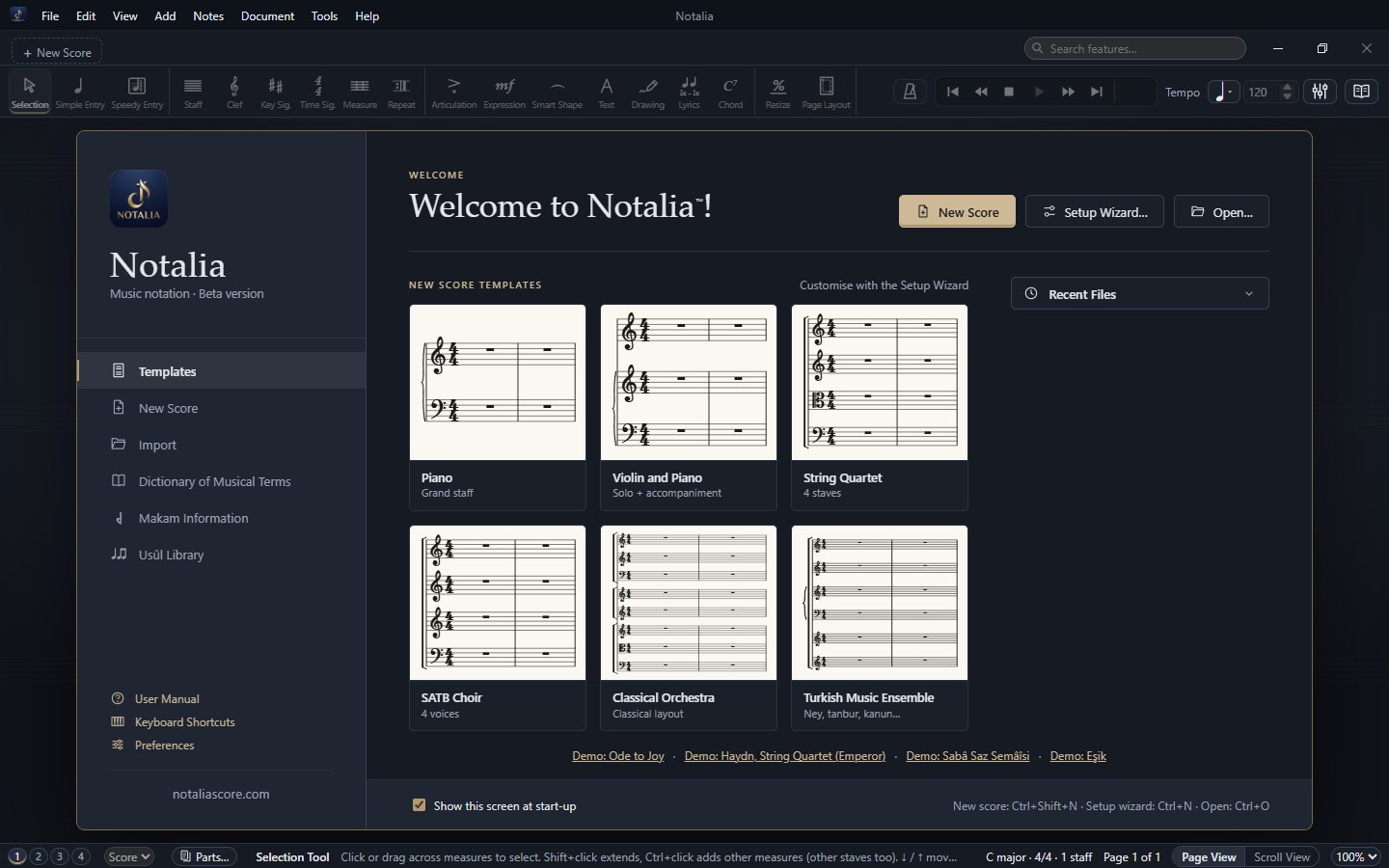
Notalia opens with the welcome screen. Start writing at once from a template (Piano, Violin and Piano, String Quartet, SATB Choir, Classical Orchestra, Turkish Music Ensemble), open the Setup Wizard, go back to a recent file, or open one of the sample scores to try the features. If you would rather not see it, untick Show this screen at start-up at the bottom.
- Save Ctrl+S stores your work as
.ntl. Save As Ctrl+Shift+S. - Several scores can be open at once, each in its own tab under the menu. Ctrl+W closes the current one. View › Scores Side by Side shows two scores next to each other.
- Drag and drop: drop any file Notalia can open (
.ntl, MusicXML, MIDI, PDF…) on the window and it opens in a new tab. - Everything can be undone: Undo Ctrl+Z, Redo Ctrl+Y.
- Auto save: every few minutes a copy of each changed score is written to Notalia’s own folder (not into your file). If Notalia closes unexpectedly, the Recover Scores window offers these copies at the next start. Set the interval in Preferences › General › Saving.
- Previous versions: each time you save over a score its old state is kept (up to 10 versions). File › Previous Versions… opens the chosen one as a new score; your file stays as it is.
- Updates: Notalia looks for a new version once a day; you can ask yourself with Help › Check for Updates… The first update asks for the e-mail address of your beta application and the 6-digit code sent to it (once per computer). After that, on Windows new versions download by themselves, are verified and are installed quietly when you close Notalia; on a Mac, Notalia asks before installing. The portable version does not update itself.
- Beta period: every beta version works fully for 30 days from the day it was built; in the last 14 days the status bar shows the days left. After that the version only opens and plays scores (writing, saving, printing and exporting are closed). Your files are safe: install the new version from notaliascore.com and go on where you left off.
2The window
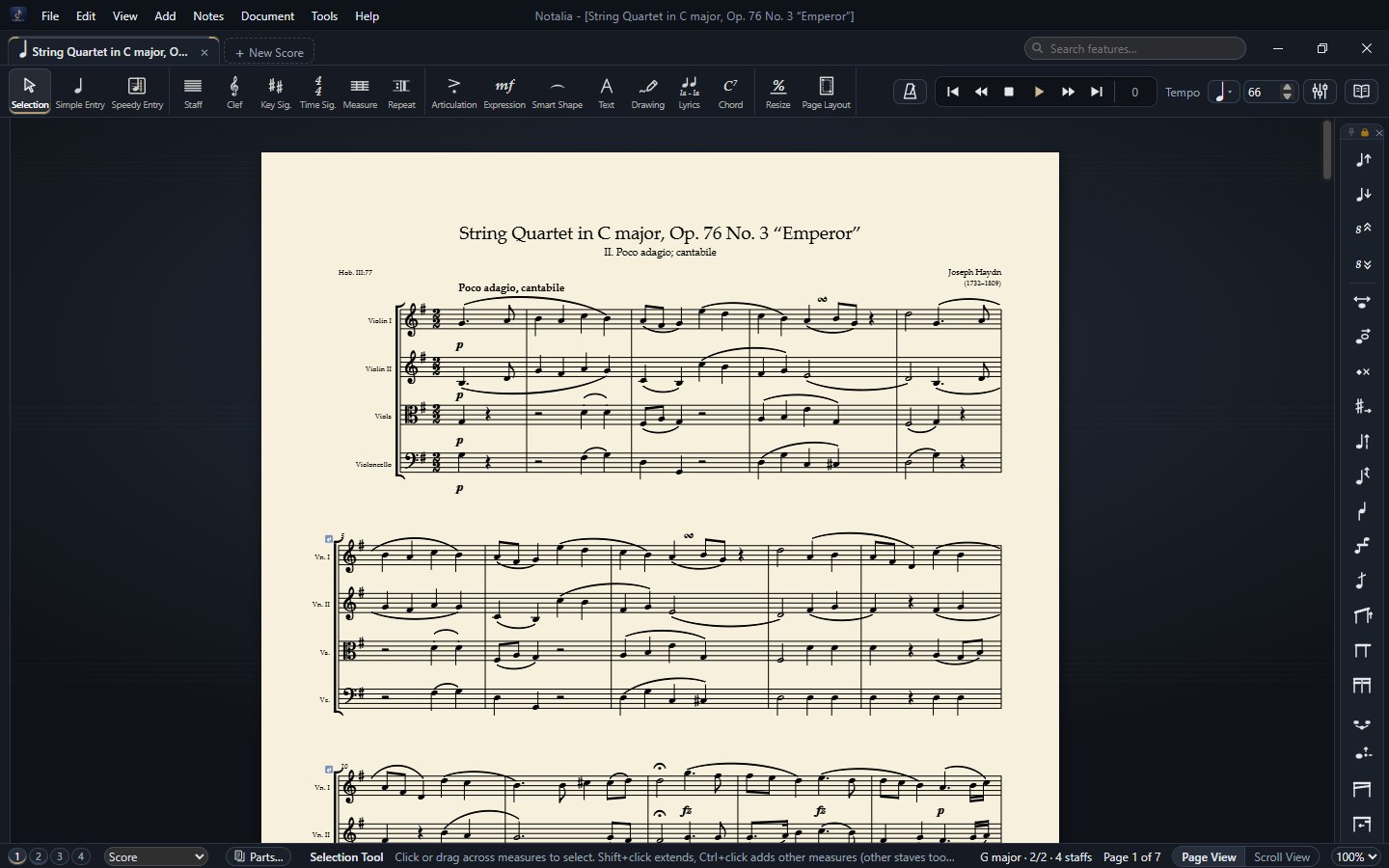
| Part | What it does |
|---|---|
| Menu bar | File, Edit, View, Add, Notes, Document, Tools, Help — every command lives here. |
| Search box | Type the name of a command or tool into Search features… at the top right and Notalia takes you there. |
| Tabs | The open scores. The + button after the tabs opens an empty score. |
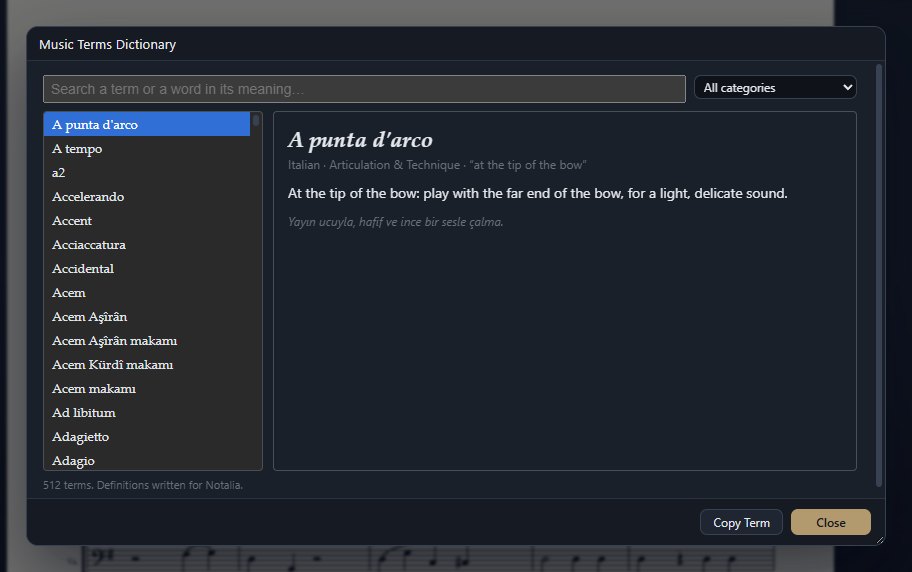
| Tool bar | Selection, Simple Entry, Speedy Entry, Staff, Clef, Key Sig., Time Sig., Measure, Repeat, Articulation, Expression, Smart Shape, Text, Drawing, Lyrics, Chord, Resize, Page Layout. On the right: the metronome, the play tray (⏮ ◀◀ ■ ▶ ▶▶ ⏭ and the measure number), the tempo, the mixer and the dictionary. |
| Palettes | Small windows that belong to the current tool (in Simple Entry: durations and accidentals). Dock them on the left, along the top, or let them float; the padlock fixes a palette’s place, the pin keeps it visible in every tool. The Special Tools palette on the right edge fine-tunes noteheads, stems, beams, ties and dots. |
| Status bar | From left to right: layer buttons 1 2 3 4, the Score / part selector, Parts…, a short help for the current tool, key and meter, the page number, the Page / Scroll View button and the zoom. The next step is always written here. |
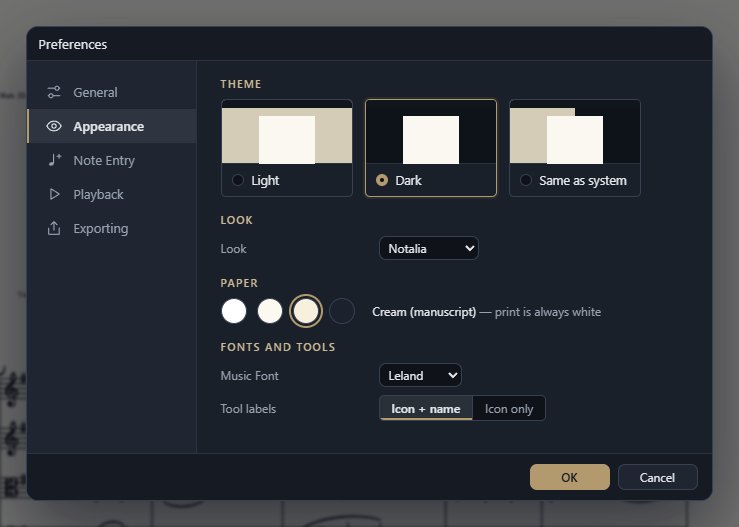
Looks: three looks (Classic, Notalia, Gravür), a light and a dark theme, four paper colours and seven music fonts are on the Edit › Preferences… › Appearance page. The paper colour is for the screen only; in print the page is always white. The other pages of Preferences: General (language, start-up, saving), Note Entry, Playback and Exporting.
3A new score: the Setup Wizard
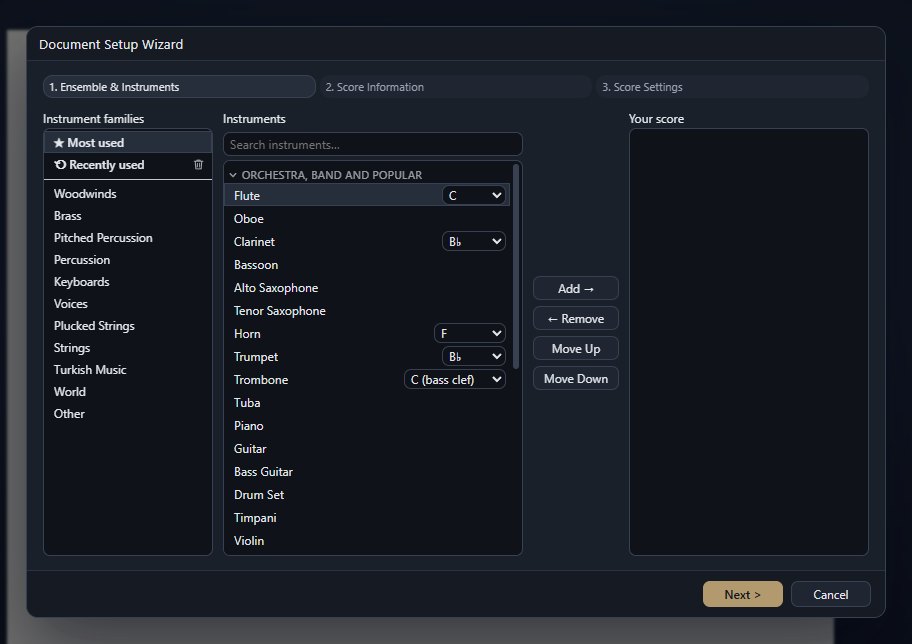
- Ensemble and Instruments: pick a family on the left, an instrument in the middle, and press Add →. The list holds more than 220 instruments; Turkish Music (plucked, wind, bowed and percussion instruments) and World are families of their own, Most used and Recently used stand at the top. The search box knows English and Turkish names. Transposing instruments (B♭ Clarinet, Horn in F…) take their key from the list beside them.
- Score Information: title, subtitle, composer, arranger, lyricist, copyright.
- Score Settings: key, time signature (composite meters too), tempo, pickup measure and paper size. For the key, the Standard tab holds the major / minor keys and the Microtonal tab the makam and Turkish folk music key signatures (see section 21).
For a quick empty page use New Default Document Ctrl+Shift+N. Instruments can be changed later in Document › Score Manager (Instruments)…
4Hint cards
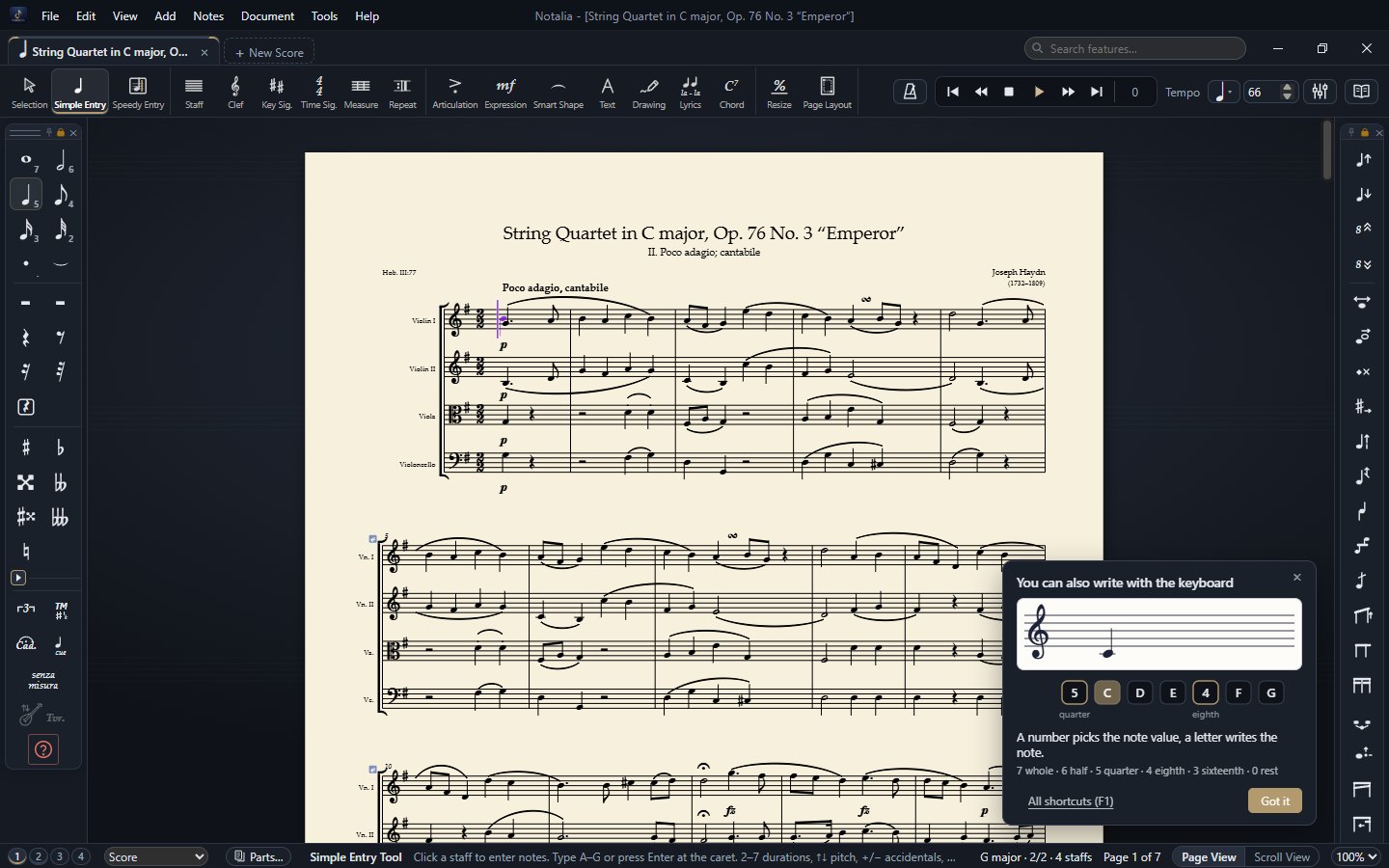
The first time you click the icon of a tool or a mode, a small animated hint card opens in the corner of the window and shows in a few seconds how it is used. A card opens only when you click an icon, and only one at a time; it never interrupts your work.
- Got it closes the card for good; × hides it for this session only.
- Tools and modes with a card: Simple Entry (writing from the keyboard, chords), Speedy Entry, Cadenza, Senza misura, Cue notes, the Turkish Music and Turkish Folk Music modes, Smart Shape, Articulation, Expression, Repeat, Drawing and Tavır.
- All the cards stand at the top of the shortcut list opened with F1, in a gallery you page through with the arrows.
- To see the closed cards again: Help › Show the Hints Again.
5Selection Tool
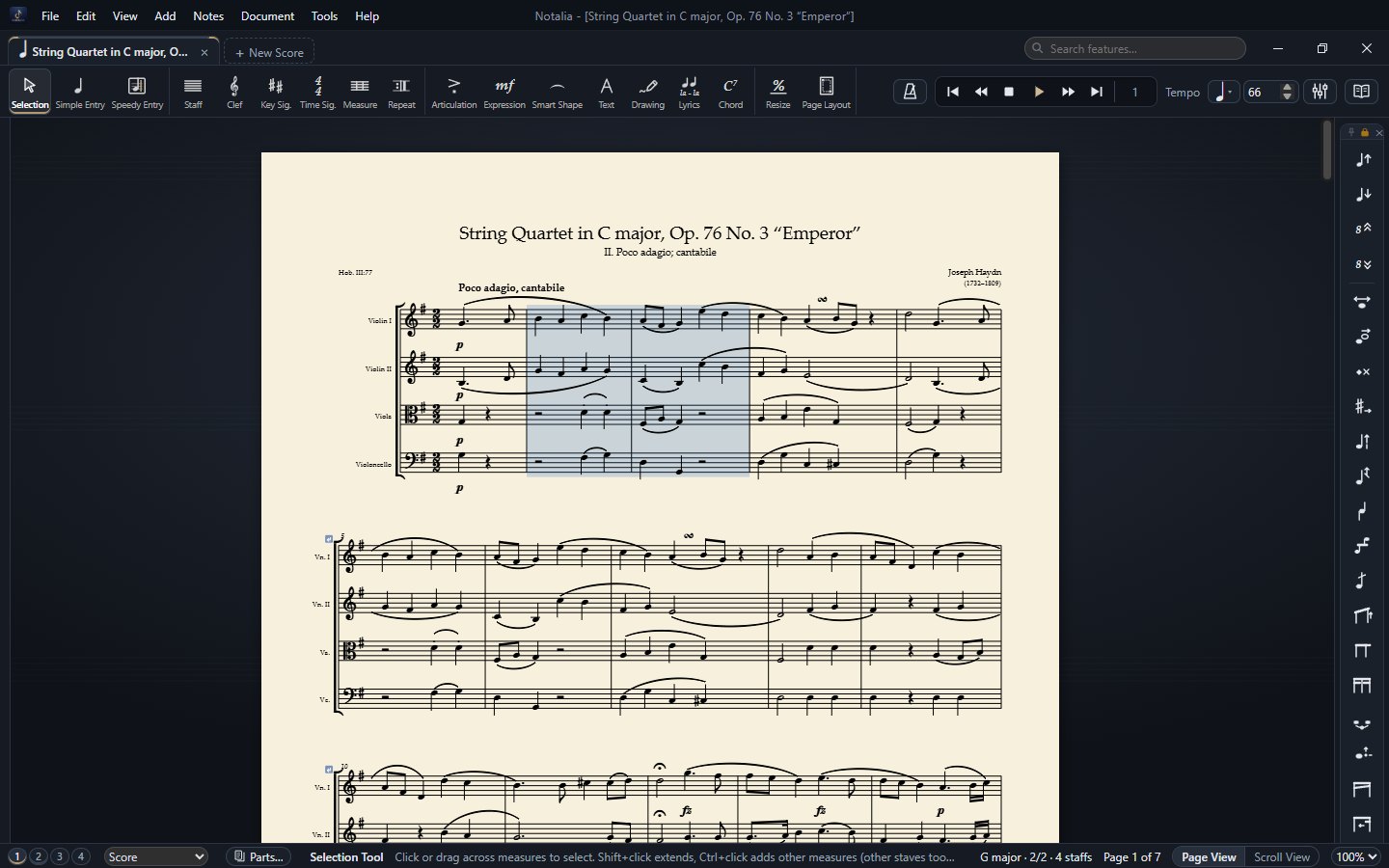
- Click or drag over measures; Shift+click extends the selection. Copy / Cut / Paste, Clear and the commands of the Notes menu act on the selection.
- ↓ moves the selected measure and the rest of its system to the next system, ↑ to the previous one. System breaks show as small blue tags; select one and press Delete to remove it.
- Instrument names are clickable: double-click or Enter edits the full and short name.
- Notes, expressions, slurs, chord symbols, drawings and texts can be dragged in this tool as well.
- The right-click menu gathers the commands used most for the selected measures: Copy / Paste / Clear, Insert Measure Before / After, Delete Measure, barlines, the pickup measure, Multimeasure Rest, Measure Numbers, Hide Measure, measure repeats, Ossia, Tacet, Noteheads and Stems (the head and stem shape of the selected notes), Begin a New System / a New Page Here.
- Notes › Transpose… moves the selection chromatically, diatonically or enharmonically. The enharmonic mode keeps every pitch and changes only the spelling (simplify, flats to sharps or sharps to flats); after a chromatic transposition there is also Then simplify the spelling.
6Simple Entry
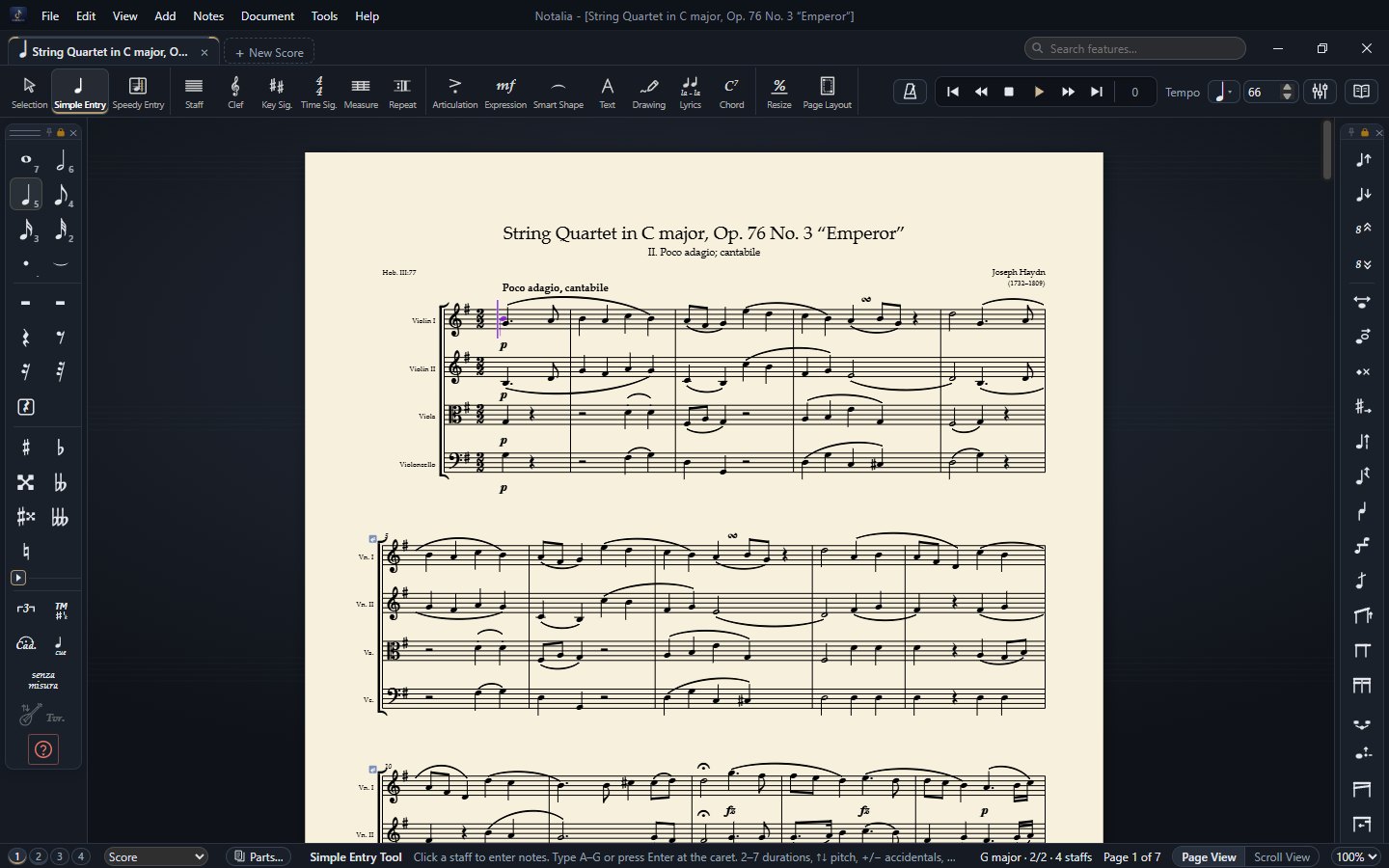
Choose a duration on the palette and click the staff; the note goes where you click. Clicking above or below a note adds a chord note. The keyboard is usually faster: a number picks the note value, a letter writes the note.
| Key | Action |
|---|---|
| A – G | Enters that pitch at the caret (or repitches the selected note). With Shift: adds it to the chord. |
| 7 6 5 4 3 2 | Whole, half, quarter, 8th, 16th, 32nd |
| . | Augmentation dot |
| 0 / R | Enter a rest / rest mode on-off |
| + − N | Sharp, flat, natural |
| T or / | Tie to the next note |
| ↑ ↓ / Ctrl+↑↓ | A step / an octave |
| Ctrl+2 … Ctrl+8 | Tuplets 2:1, 3:2, 4:3, 5:4, 6:2, 7:4, 8:2. Ctrl+1: Tuplet Definition for any ratio |
| S, <, > | Slur, crescendo, decrescendo: press once at the first note and once at the last |
| Backspace | Delete the previous / selected note |
| Esc | Deselect, then back to the Selection Tool |
The full list: Help › Simple Entry Keyboard Shortcuts F1.
The mode buttons of the palette
The buttons at the bottom of the Simple Entry palette change the way you write; one click switches a mode on, another switches it off.
| Button | What it does |
|---|---|
| Cadenza | While it is on, the measure you write in takes any number of notes. Only that measure is free; the time signature stays. |
| Senza misura | The whole piece is written without measures: every line is one free measure. For a barline of your own right-click the measure and choose Add Barline. The same setting is in Document › Senza Misura (No Measures). |
| Cue notes | While it is on, what you write is small and is not played; the instrument name goes over the first note. To make them from an existing part: Add › Create Cue Notes… |
| TM / THM | Turkish Music mode: in Speedy Entry + and − add komas instead of a sharp or a flat. A second click turns on the Turkish Folk Music mode (the signs ♭1 ♭2 ♭3 ♭4 and ♯1 ♯2 ♯3), a third one switches it off. |
| Tavır Template | Lays the tartım of the chosen tavır into an empty measure of the bağlama staff; you only give the pitches (see section 22). |
7Speedy Entry
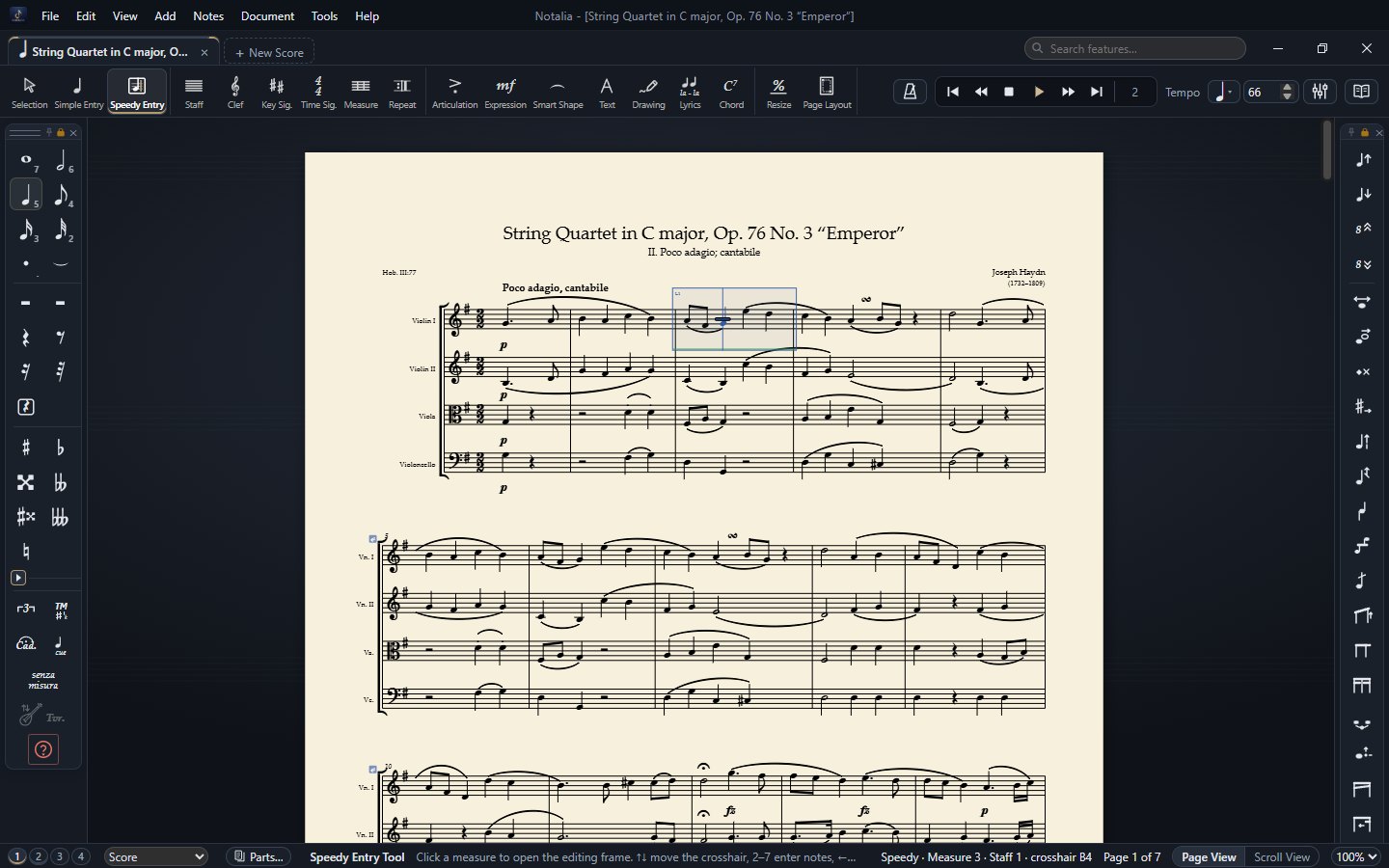
The fastest way to write. Click a measure, move the crosshair with ↑ ↓ and press a duration key.
| Key | Action |
|---|---|
| 7 … 1 | Whole to 64th note (with a MIDI keyboard: the held keys; no keys = rest). On an existing note: changes its duration. |
| Enter | Adds the crosshair pitch to the chord |
| ← → / [ ] | Previous / next note; previous / next measure |
| PgUp PgDn | Staff above / below |
| + − | Raise / lower the note a half step. In Turkish Music mode: adds komas. |
| 9 | Enharmonic spelling |
| * / P | Courtesy accidental / in parentheses |
| 0 | Note ⇄ rest |
| H, L | Hide / show the note; flip the stem |
| Insert | Insert mode |
| Esc | Close the frame |
All commands: Tools › Tool Options › Speedy Entry Commands. Settings: Speedy Options… (jump to the next measure, MIDI input, playback while entering).
8Staff, clef, key signature, time signature and measures
- Staff: staff attributes (lines, items shown, transposition, size); hide or combine staves. Groups and brackets: Document › Groups and Brackets…
- Clef: pick a clef on the palette and click a measure; mid-measure clef changes are supported.
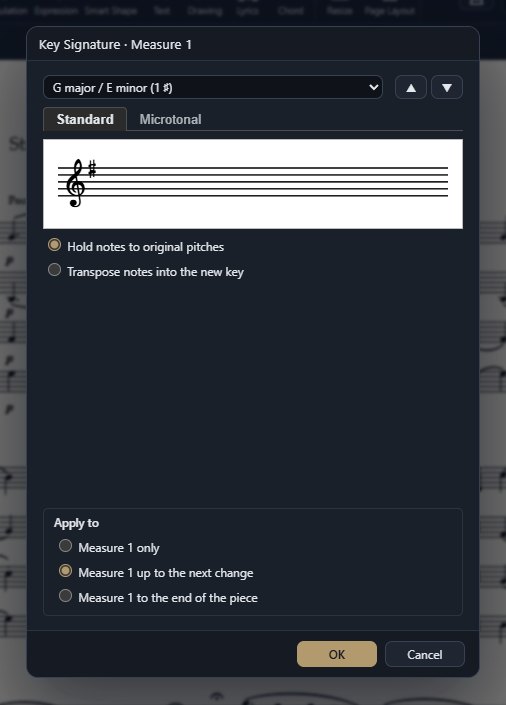
- Key Sig. and Time Sig.: a change applies to “this measure only”, “until the next change” or “to the end of the piece”. Transposing the notes into the new key is optional.
- Measure: add / delete measures, barline types (double, final, dashed…), multimeasure rests and measure width. Hide Measure keeps the contents of a measure out of print (they stay faint on screen).
Measure numbers
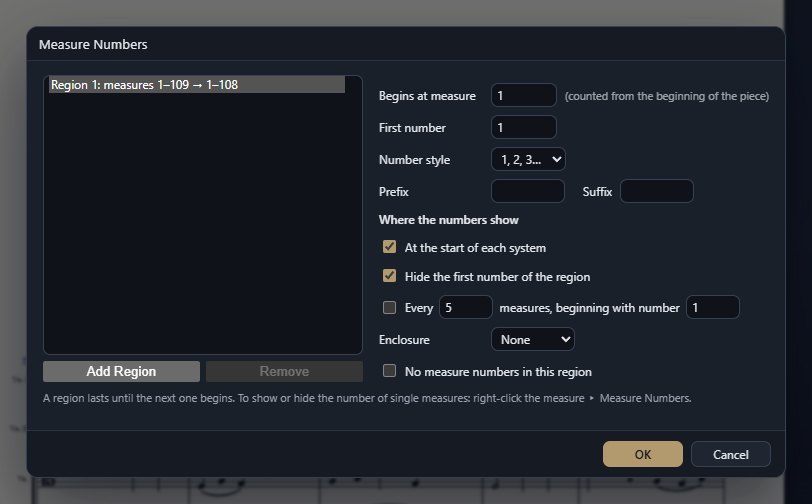
In Document › Measure Numbers… you divide the score into regions; each region has its own first number, number style, prefix and suffix. A region lasts until the next one begins.
- Where numbers show: at the start of every system, at regular intervals (e.g. every 5 measures), or not at all; the first number of a region can be hidden and the numbers can be enclosed.
- For a single measure: right-click the measure ▸ Measure Numbers: Show Measure Numbers, Hide, Restore Measure Number Defaults or Restart Numbering Here… (the measures after it count on from there).
- The second part of a measure split by a repeat inside it is not counted (see section 13).
9Articulations and expressions
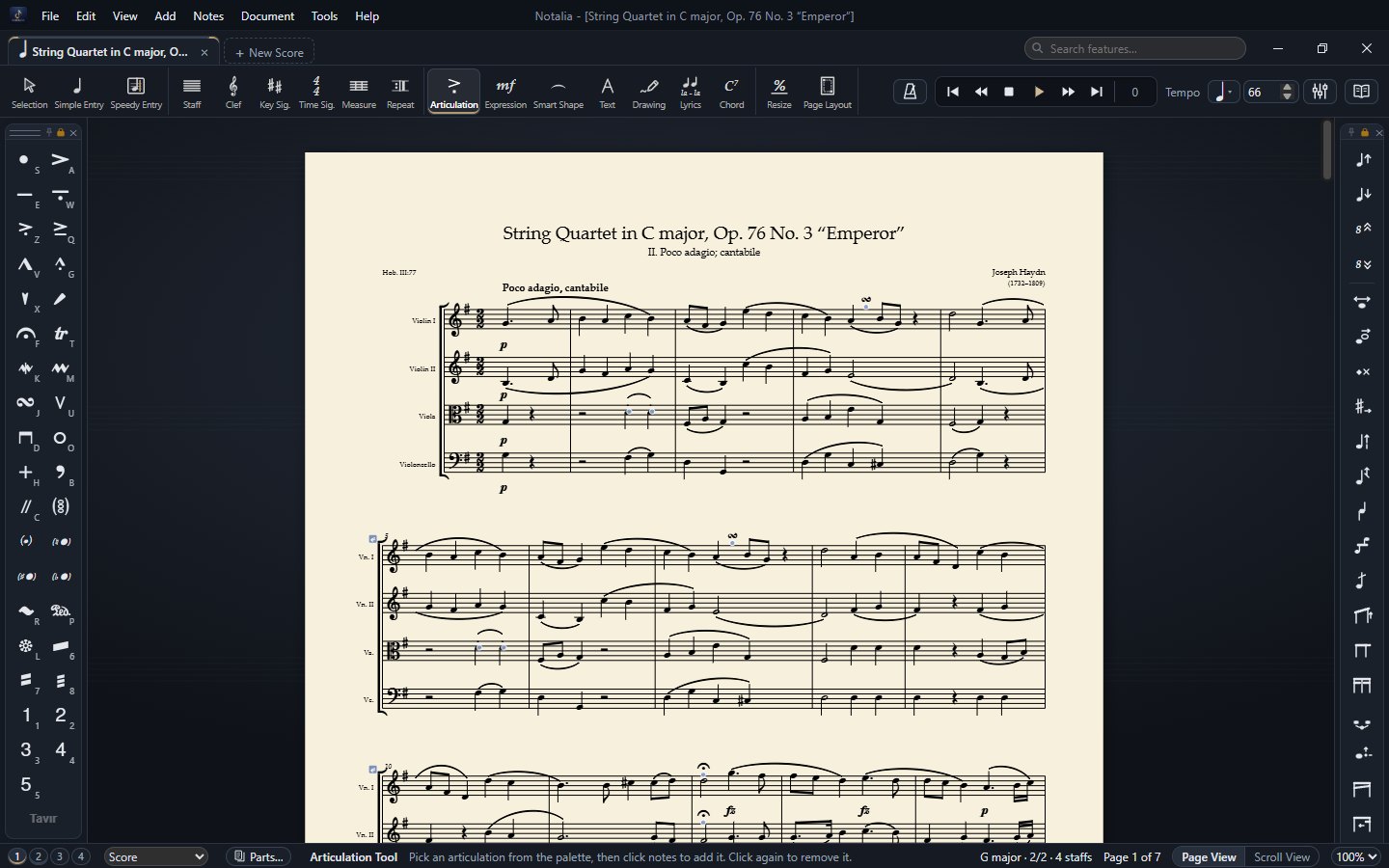
- Articulation: pick a mark on the palette and click each note that takes it; a second click on the note removes it. You can also select several notes and add it to all of them. A click on a placed mark selects it (Delete removes it, a double-click changes it); drag a rectangle to select several. Marks can be dragged and flipped above / below. Marks added later place themselves so that they do not collide with each other or with the notes.
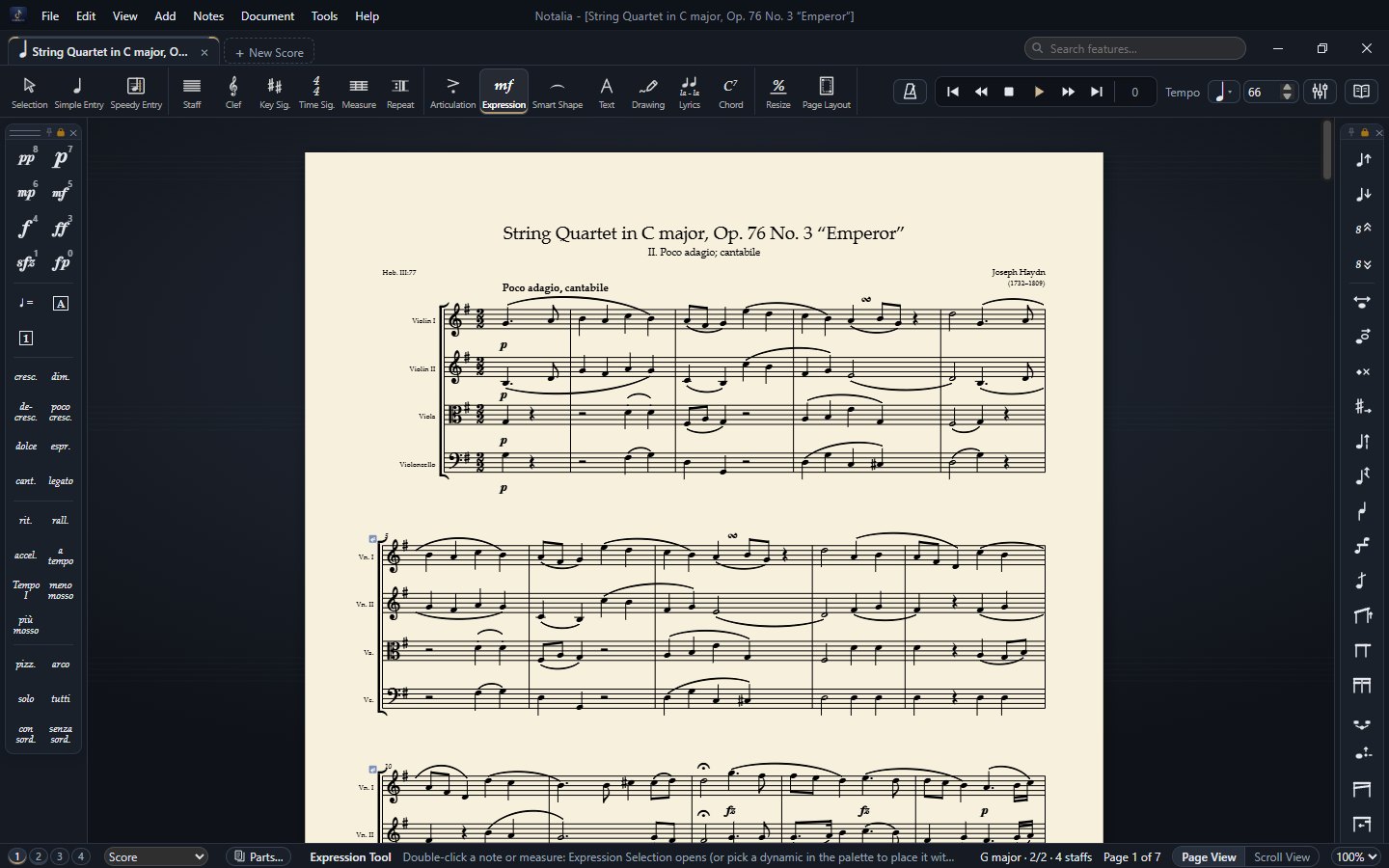
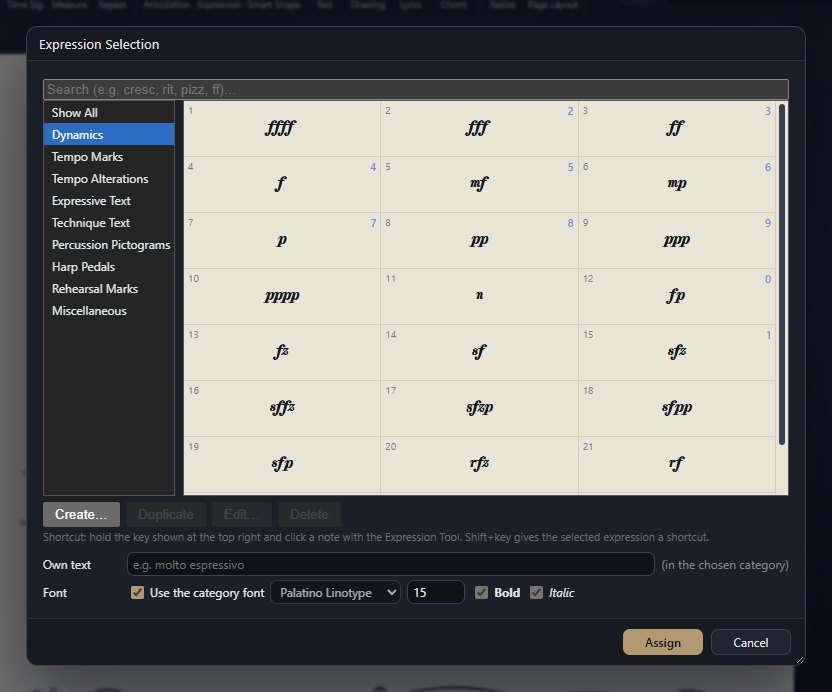
- Expression: dynamics (pp … ff, sfz, fp), metronome marks, rehearsal marks and terms such as cresc., dim., rit., a tempo, pizz., arco. Pick a dynamic on the palette and click a note, or double-click a note to open Expression Selection. Drag a mark to move it: the dashed line shows the note it belongs to.
- Tempo words and metronome marks change the playback tempo. A metronome mark plays what it shows: the note value and number chosen in the “Metronome mark” row of Expression Selection are both written and played. Tempo marks can be dragged up and down freely.
- Right-click: on a metronome mark or tempo word in the score the menu starts with note-value buttons (whole … dotted sixteenth), a number box with −/+ and presets (40 … 176); the mark, the playback and the toolbar tempo change together at once. The mark at the start of the piece is the score tempo.
10Slurs, hairpins and lines (Smart Shapes)
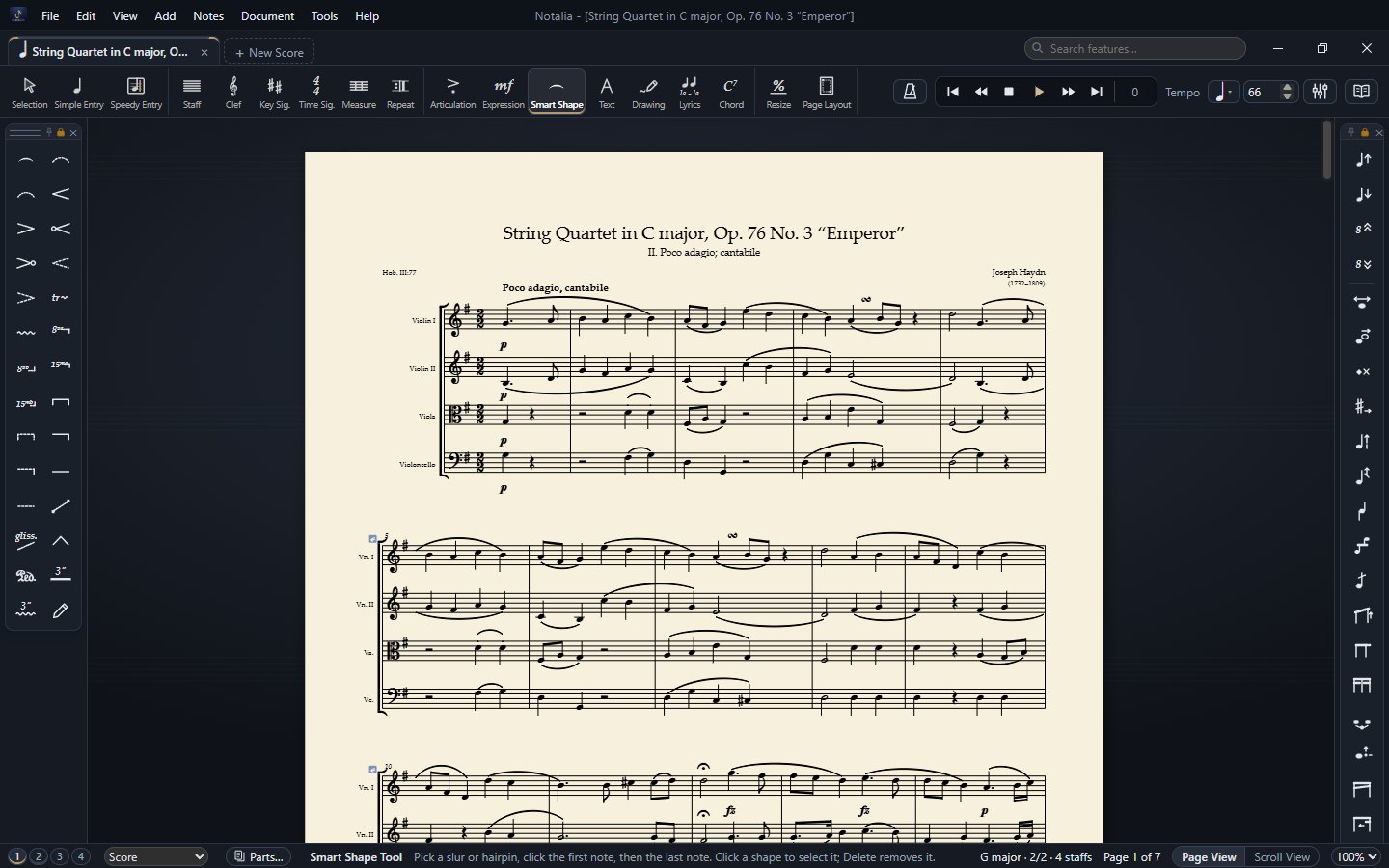
Pick a shape on the palette (slur, dashed slur, crescendo / decrescendo hairpin, 8va / 8vb, 15ma / 15mb, trill, glissando, pedal, brackets and custom lines), click the first note, then the last one. Click a shape to show its handles; drag them to adjust the ends and the curvature. Let an end go on the head of another note and it is attached to that note; let it go anywhere else and only its position changes. Hairpins are heard in playback too. Line styles are in Tools › Tool Options › Smart Line Styles…
11Drawing Tool (graphic notation)
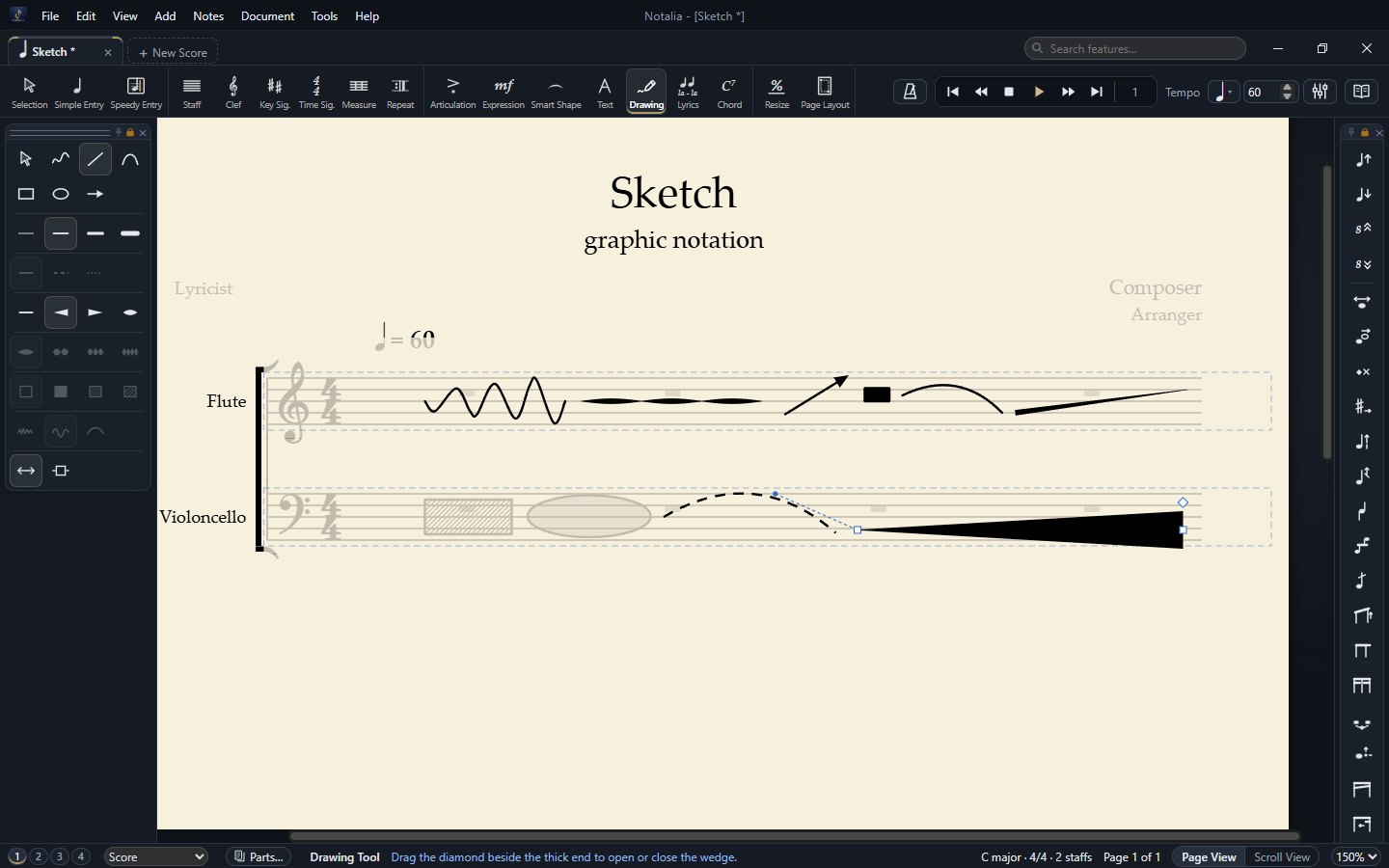
For the graphic signs of contemporary music you draw freely on the score. Pick a shape on the palette and drag on the page. A drawing belongs to the measure it lies on: it moves with the measure and stretches with it as the measure gets wider.
| Palette | Options |
|---|---|
| Shapes | Pen (freehand), line, curve, box, ellipse, arrow. The pointer button selects and moves drawings. |
| Thickness and line | Four thicknesses; a solid, dashed or dotted line. |
| Form | An even, growing, thinning or swelling line; for a swelling line the number of swells is chosen from 1 to 4. |
| Fill | For boxes and ellipses: empty, filled, grey or hatched. |
| Pen | How much a freehand line is smoothed. |
| Stretching | The drawing stretches with its measure or keeps its size. |
- Click a drawing: drag it to move it, drag a handle to reshape it. The arrow keys nudge it, Delete removes it.
- On a growing or swelling line, the diamond handle beside the thick end opens or closes the wedge.
- Right-click a drawing: Make Horizontal levels a line that was drawn slanted.
- Drawings are not played; in print and in PDF and image exports they come out as they are on the page.
12Text, lyrics and chords
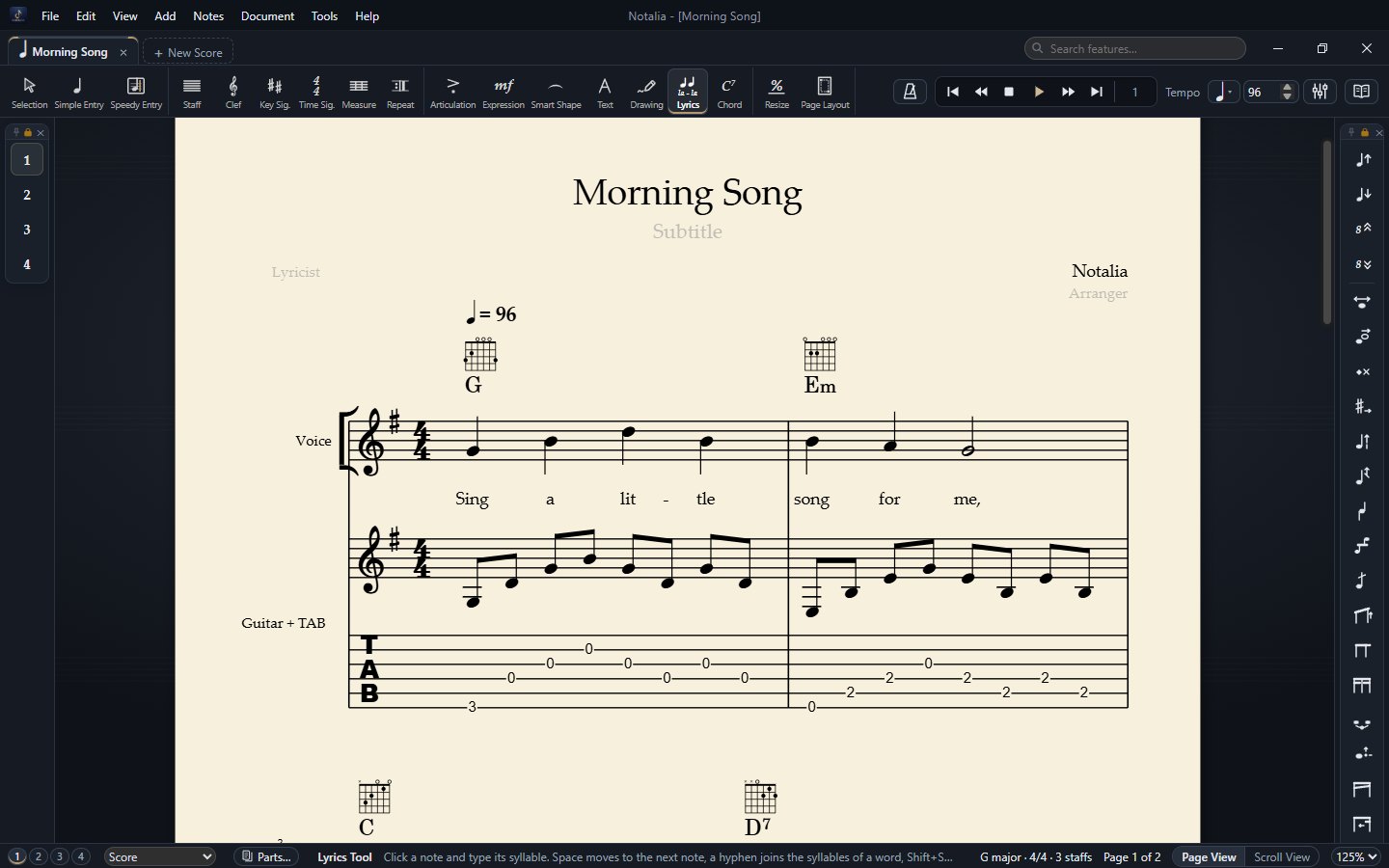
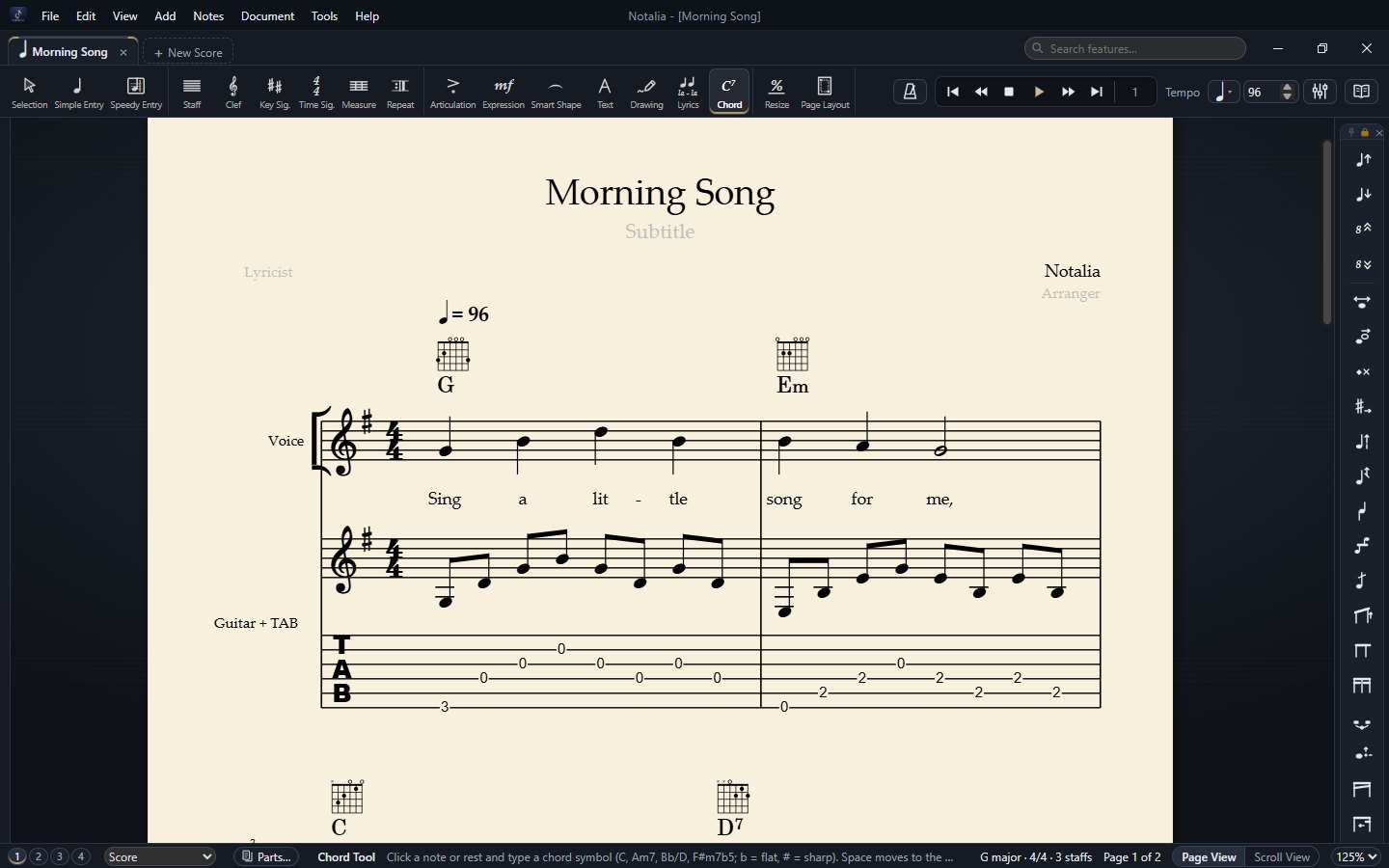
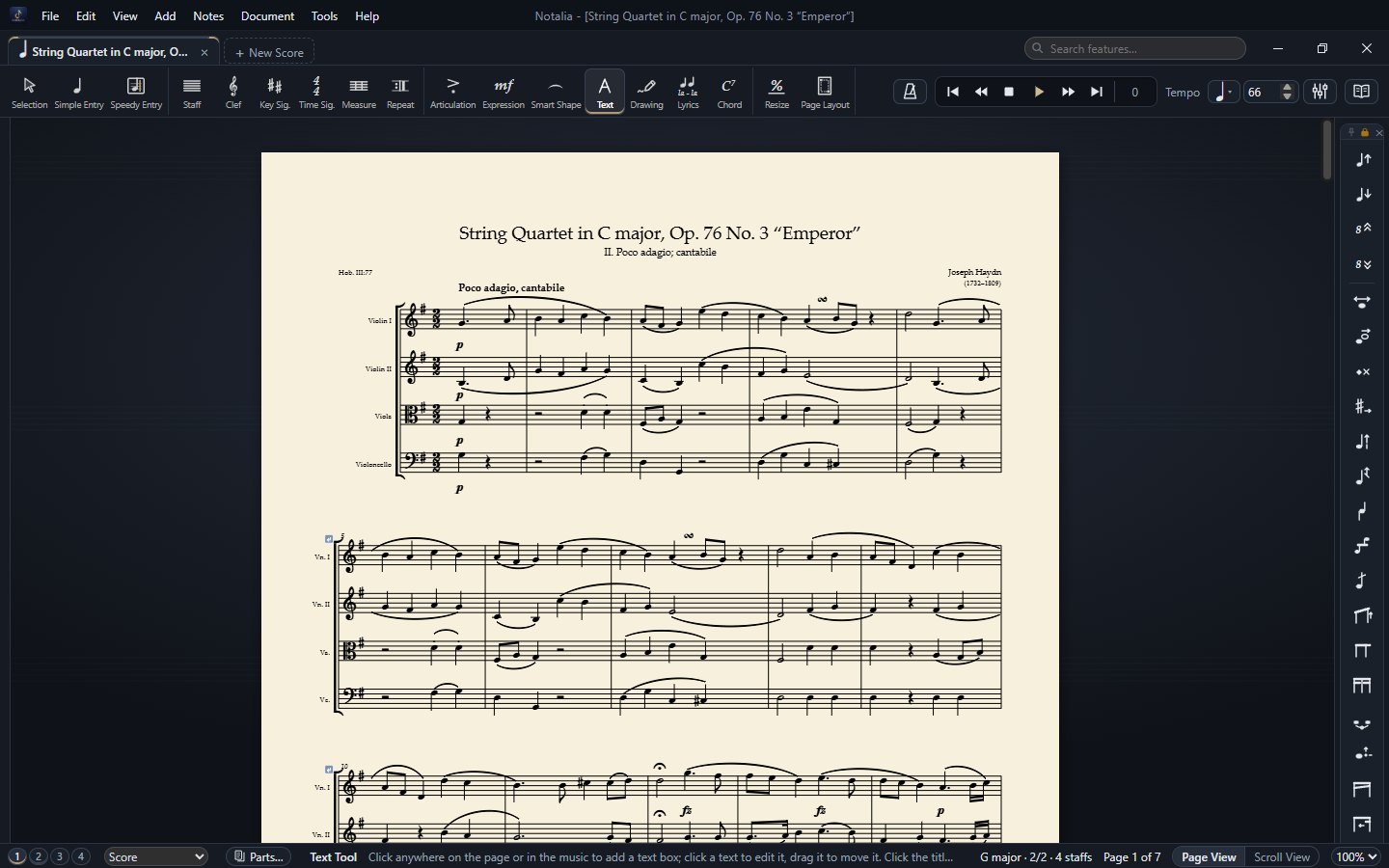
- Text: free text attached to the page or to a measure. Double-click to set font, size, bold / italic and alignment. To put a picture on the page: Add › Insert Picture…
- Lyrics: click a note and type the syllable; Space goes to the next note, - joins syllables with a hyphen, Shift+Space goes back. Several verses are supported: while typing, ↓ / ↑ go to the next / previous verse.
- Chord: click a note or a rest and type the chord symbol (C7, Dm7♭5, G/B…). A double-click opens the Chord Definition window. Tools › Tool Options › Show Guitar Fretboards puts fretboards over the symbols.
- How chords look: right-click a chord symbol: size (Small, Normal, Large, Very Large, Other…) and Chord Symbol Font… Chord symbols and fretboards are moved by dragging them with the Selection Tool.
13Repeats
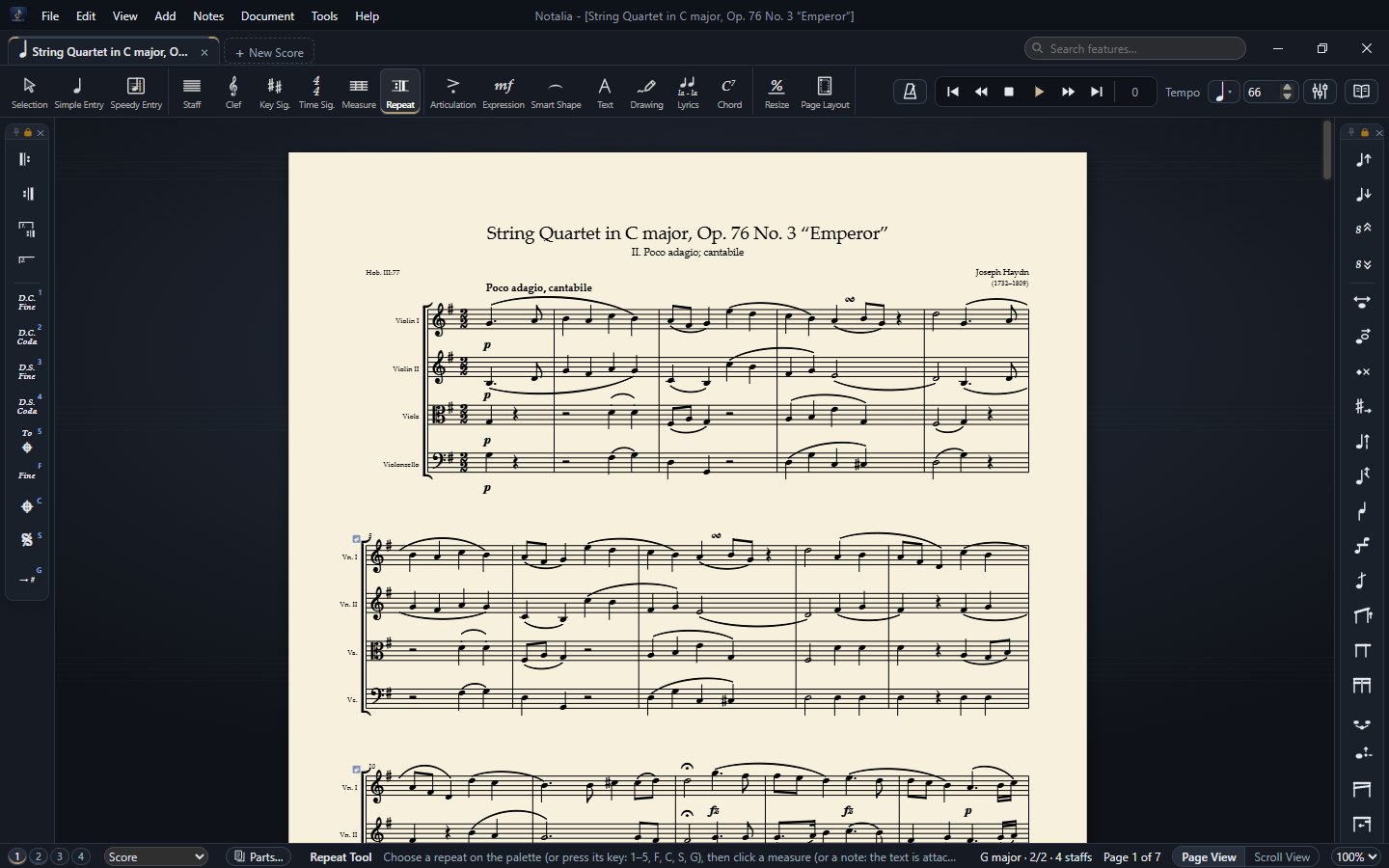
Repeat barlines, 1st / 2nd endings, D.C., D.S., Fine, To Coda, Segno, Coda are added with this tool. Playback follows the repeats and jumps.
A repeat inside a measure: drag the round handle over a repeat barline (every one in the Repeat Tool, the selected one in the Selection Tool) into a measure; the measure is split there and the second part is not counted in the measure numbers (e.g. a pickup + a short last measure = one full measure). It is a plain drag, with no key held. Drag it back onto a barline and the parts join again.
Measure repeats: right-click a measure with the Selection Tool and choose One-Bar Repeat (repeats the measure before) or Two-Bar Repeat (repeats the two measures before). The sign replaces the measure’s contents; playback and MIDI / MusicXML export play the repeated notes. Choosing the command again removes the sign; writing notes into the measure replaces it too.
14Layers (voices)
Every staff has four independent layers. Choose the active layer with the 1 2 3 4 buttons on the status bar; the entry tools write into it. Layer 2 shows red, 3 green, 4 blue (printed black); View › Show / Hide Layer Colors turns the colours on and off. When several layers sound, stems split automatically (1 and 3 up, 2 and 4 down). To take the selected notes to another layer: Notes › Move to Layer. Cue notes are kept in a layer of their own.
15Page layout
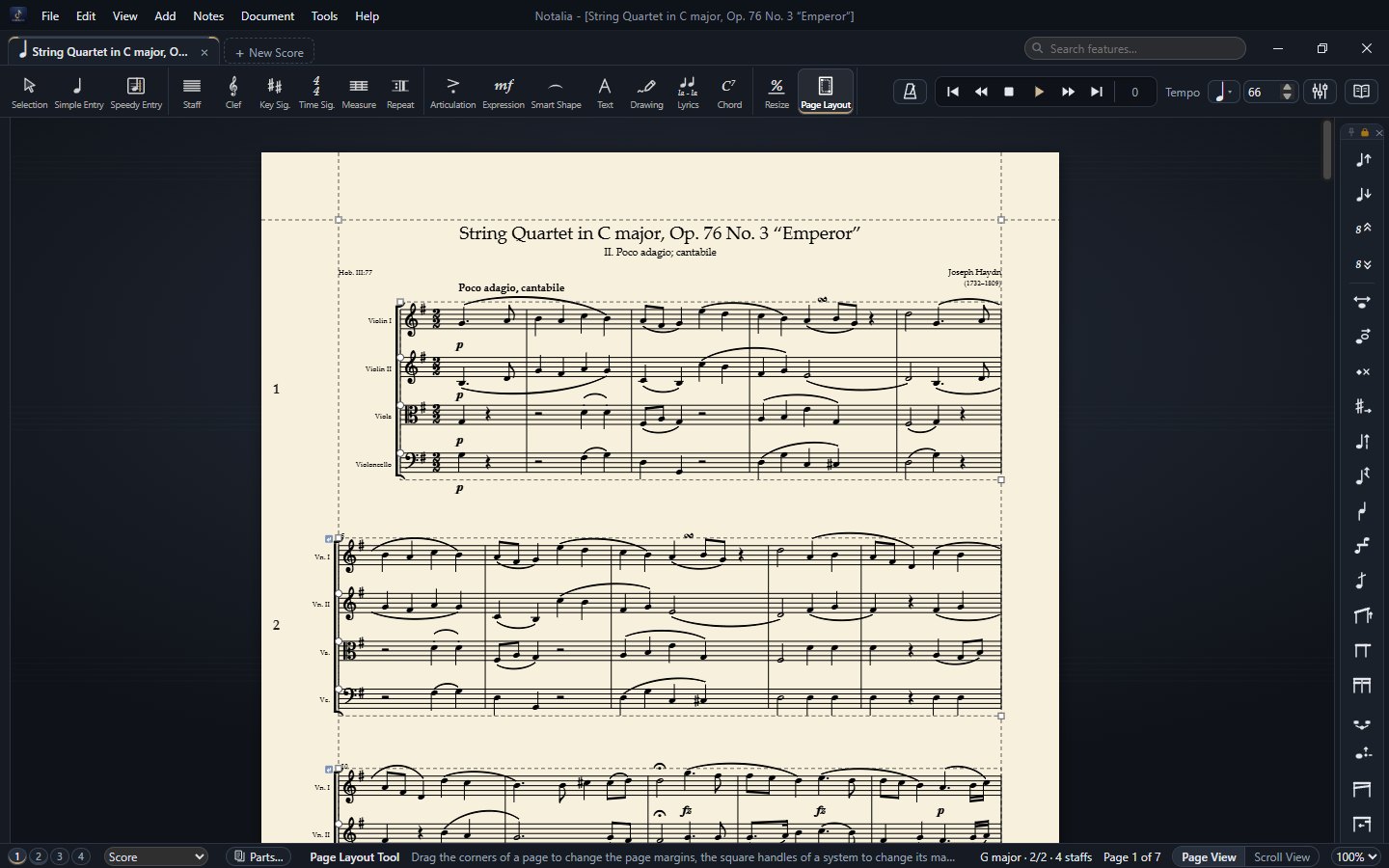
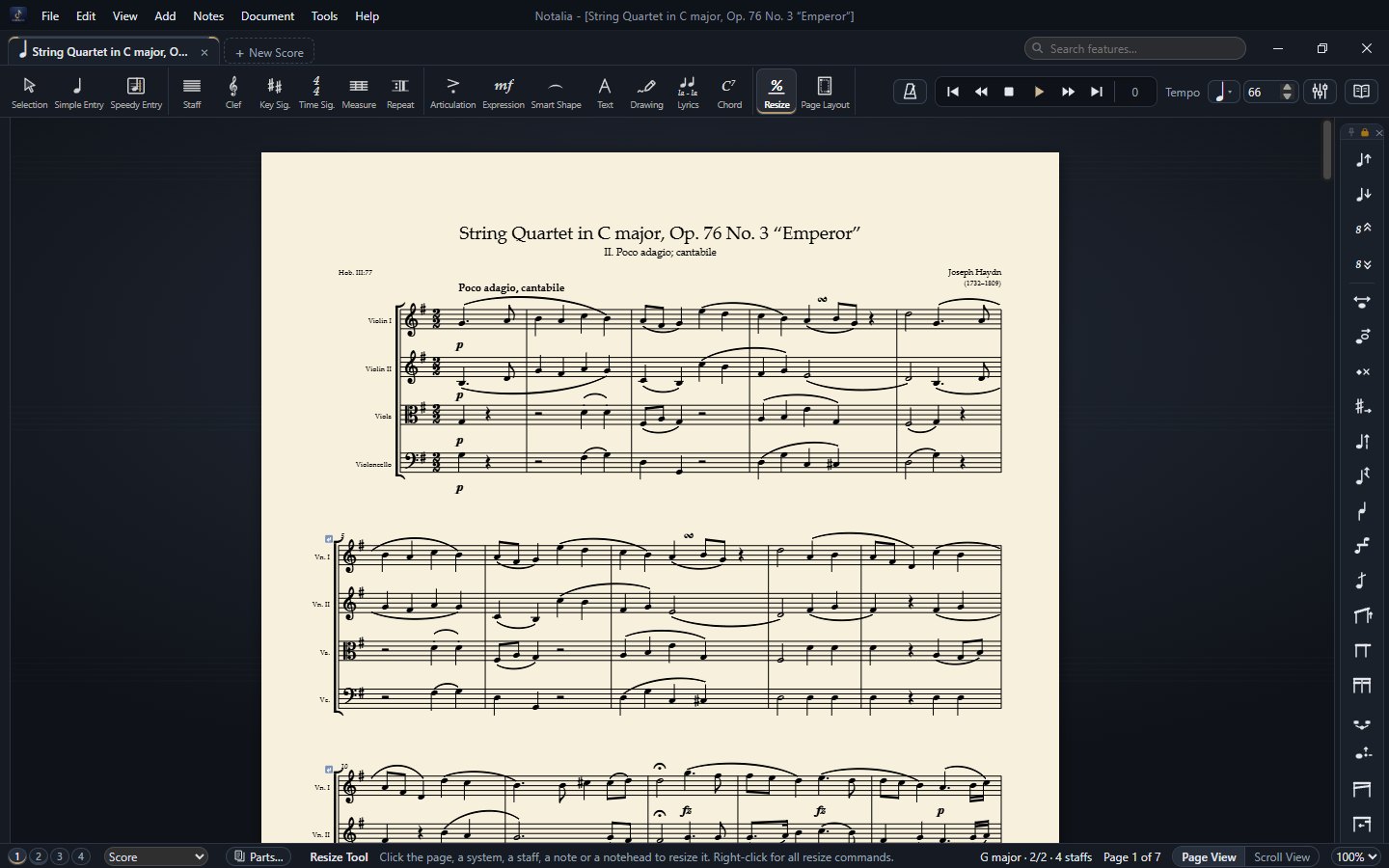
- Page Layout: drag the page corners for the page margins and the system boxes for system margins. Systems can be dragged to another page; “Spread Systems Over the Page” distributes them vertically.
- Staff distances: in scores with several staves every staff but the top one has a round handle at its start in every system. Drag it up / down to change the room between it and the staff above in that system only; the staves below follow. While dragging, the moving staves show as see-through boxes and the status bar gives the distance in mm. Double-click the handle for an exact value. Right-click: Staff Distance…, Use These Staff Distances in All Systems, reset commands.
- Automatic staff distances: where notes, slurs, dynamics, articulations or expressions of two neighbouring staves would touch, Notalia moves the lower staff down just enough in that system; this is worked out again after every change and the handles follow by themselves. Turn it off / on with Automatic Staff Distances in the Page Layout right-click menu.
- Resize: scales the page, a system, a staff or notes by a percentage. The size you give a system belongs to its measures; when you insert measures before it, the size moves along with them.
- Sizes never change by themselves: Notalia does not change the staff or system size unless you ask. In crowded measures the notes are squeezed; you arrange the systems. If the instruments you add no longer fit on one page, the status bar tells you which percentage would fit with the Resize Tool.
- Document › Page Size…: paper size (A4, Letter, A3…) and orientation.
- Document › Fit Measures… Ctrl+M puts the selected measures on one system; Reset System Layout removes the system breaks set by hand.
16Score Manager and parts
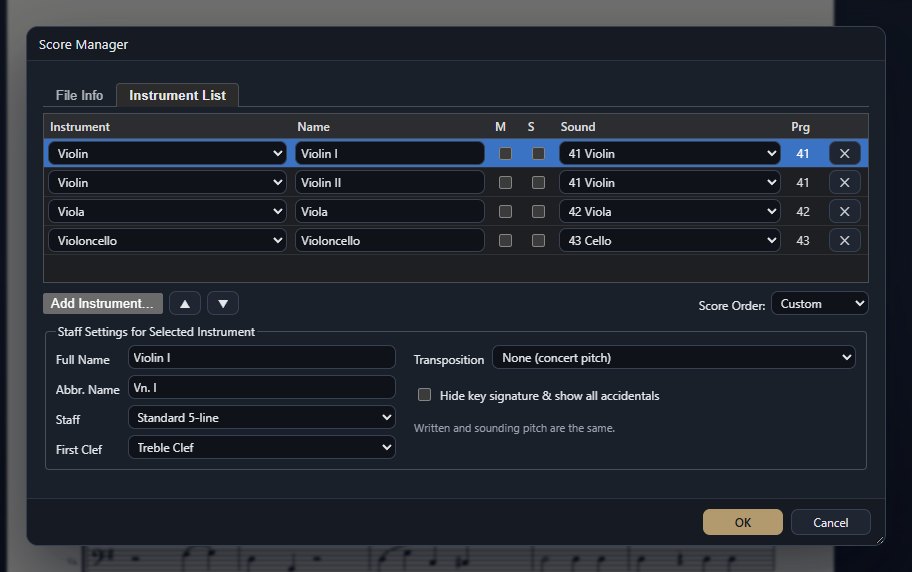
Staff › Other… (Score Manager or Staff Attributes) opens Staff Setup: click the ladder on the left to choose the lines (or type a number of Staff Lines); the top / bottom of the barline, the place of the rests and of the stem reversal, and the repeat dots are set there too. Reset Staff To brings back a ready staff (5, 1, 2, 3, 4, 6 lines).
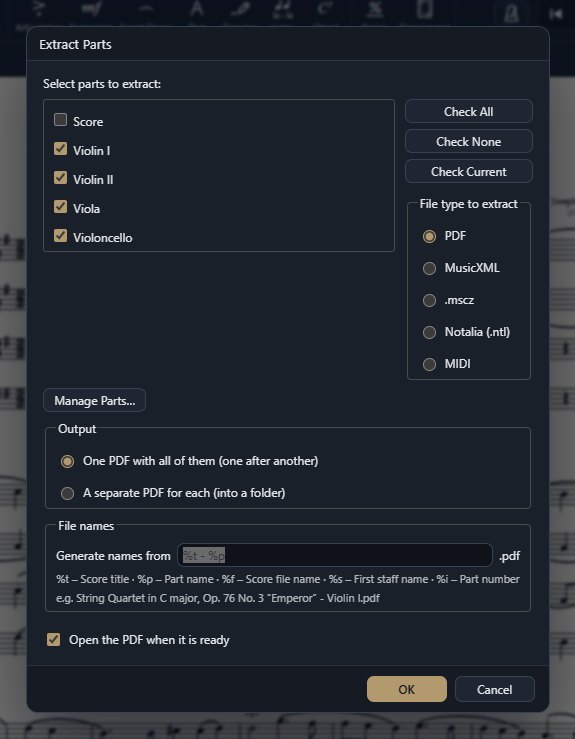
Parts are linked to the score: change a note in one and it changes in the other, while the page layout (system breaks, size) stays separate for every part. Switch between the score and the parts with the selector on the status bar. Adding / removing parts: Document › Manage Parts… Cue notes: Add › Create Cue Notes…
Transposing instruments: View › Display in Concert Pitch shows the score as it sounds. With Show Out-of-Range Notes on, notes an instrument cannot play show yellow (near the limit) or red (beyond it) on screen; they are never marked in print.
17Importing
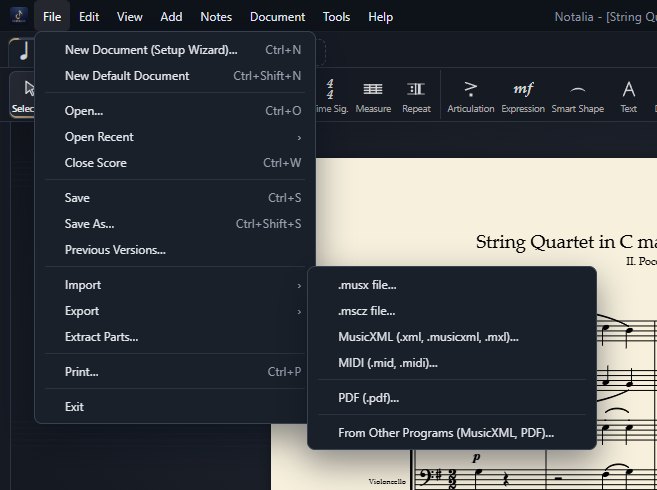
| Format | What comes in |
|---|---|
| .musx | Notes, 4 layers, key / time changes, tuplets, slurs and hairpins. Save old .mus files as .musx in the program that made them first. |
| .mscz, .mscx | Notes, voices, marks, page size, staff size, system and page breaks. |
| MusicXML (.xml, .musicxml, .mxl) | The common format of all programs. When the file carries its page layout (most notation programs write it), the pages, systems and the place of every element are kept — see section 18. |
| MIDI (.mid, .midi) | The notes of a MIDI file are turned into a score. |
| Guitar tab files (.gp, .gpx, .gp5, .gp4, .gp3) | Each track becomes a staff; guitars and basses come with a linked TAB staff, with their strings, frets and tuning. Drum staves, chords, repeats and endings, lyrics, hammer-ons / pull-offs, slides, bends, let ring and P.M. come along too. |
| .enc | Files of an older notation program: notes, clefs, key signatures, ties, lyrics and chords. If a file saved by a very old version does not open, save it again in the program that made it, or export it as MusicXML. |
| Chord charts (.html, .txt) | Files with the sharing links of chord-chart apps (irealb://). Each song opens as a one-staff chord chart: a slash on every beat, the chords on their beats, section letters, repeats and “same as the last measure” signs. When a file holds several songs you choose one; Open All opens them all. |
| Tuning system (.scl) | Opens no score: it becomes the tuning system of the open score (see section 20). |
| PDF (.pdf) | PDFs made by a notation program (vector) are read straight from their music font, with the page layout reproduced 1:1. Scanned pages and photos are not read. |
Dropping a file on the window opens it too. A short report appears on the status bar afterwards (voices left out, layout taken over, …).
18From other notation programs (with the page layout)
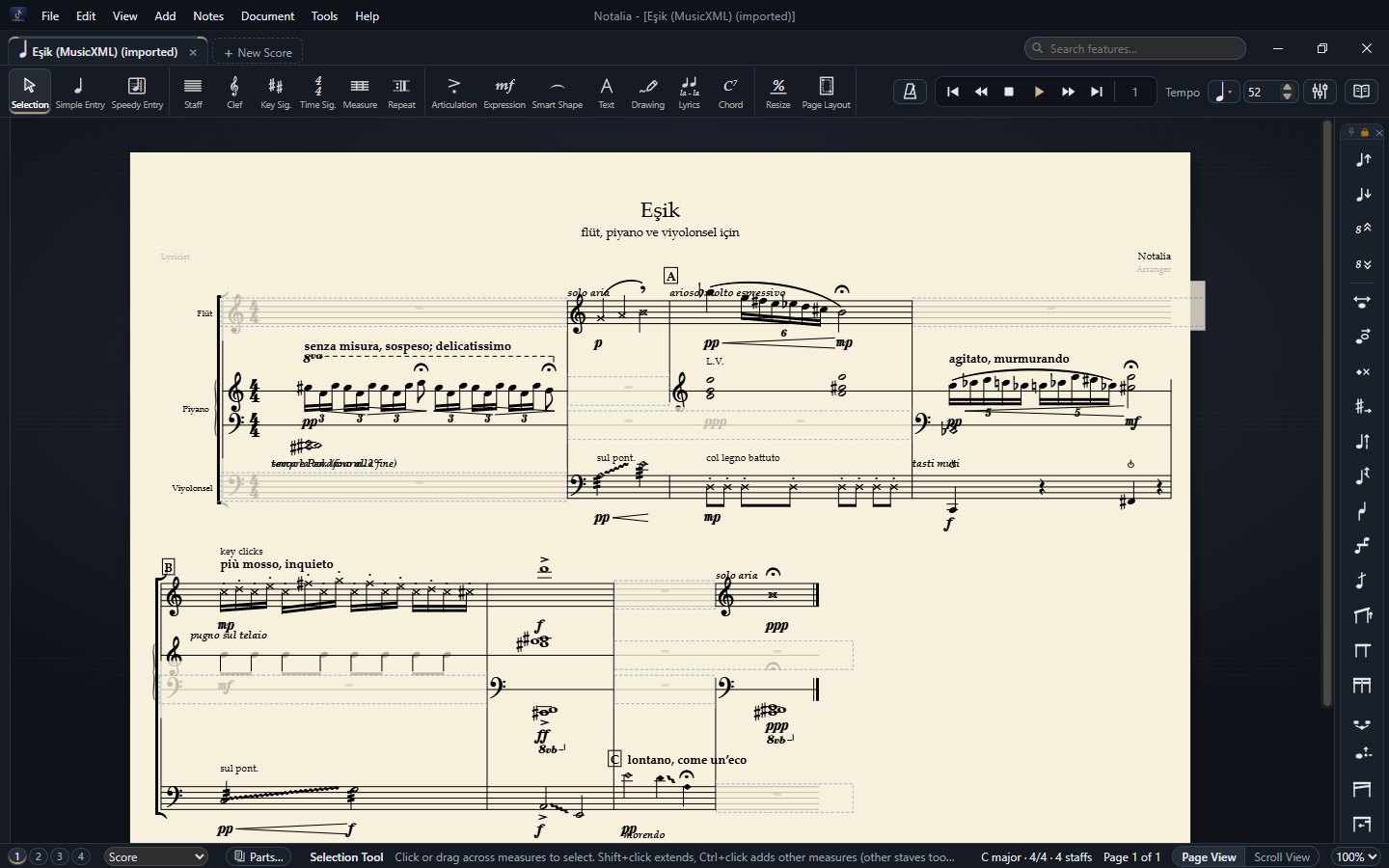
.sib and .dorico, are closed: only the programs that made them can read them. When you pick such a file, Notalia tells you what to do. Use that program’s own MusicXML or PDF export instead — both carry the whole layout.With MusicXML
- In the program the score comes from choose File › Export › MusicXML. Turn on the option that exports layout and positions too: some programs have it on by default, in others set Layout to Everything (with “system and page breaks” only the breaks come across). Export the full score only; parts can be extracted again in Notalia.
- In Notalia open the
.musicxmlfile with File › Import › From Other Programs (MusicXML, PDF)… Compressed.mxlworks too.
Through PDF
In the program the score comes from choose PDF in the File › Export menu. Choose the PDF in Notalia’s same Import menu and Notalia’s PDF reader reads the music and places the pages and systems 1:1. MusicXML is always more complete (lyrics, chord symbols, playback data); PDF is handy when a PDF is all you have.
What is kept
| Item | Status |
|---|---|
| Paper size, page margins | ✓ to the millimetre |
| Staff size, small staves | ✓ |
| System and page breaks | ✓ exactly the same measures on every system |
| Position of the systems, system indents | ✓ top distance, distance between systems, left / right system margins |
| Distances between staves | ✓ per system (piano staves, between instruments) |
| Measure widths and horizontal note positions | ✓ in the file’s proportions |
| Title, composer, copyright and other page texts | ✓ with their place, size, bold / italic and alignment; Notalia’s own title block is hidden |
| Dynamics, technique and expression texts, tempo marks | ✓ including height and horizontal offset |
| Slurs above / below, stem directions, beams | ✓ |
| Exact slur curvature, vertical offset of hairpins | Notalia draws its own curve (adjustable with the handles) |
| Empty staves hidden per system | The staves stay visible |
| Fonts | The file’s text font is used when it is installed, otherwise Palatino |
This layout fidelity works the same way for the MusicXML files of every program that writes the page layout.
19Exporting and printing
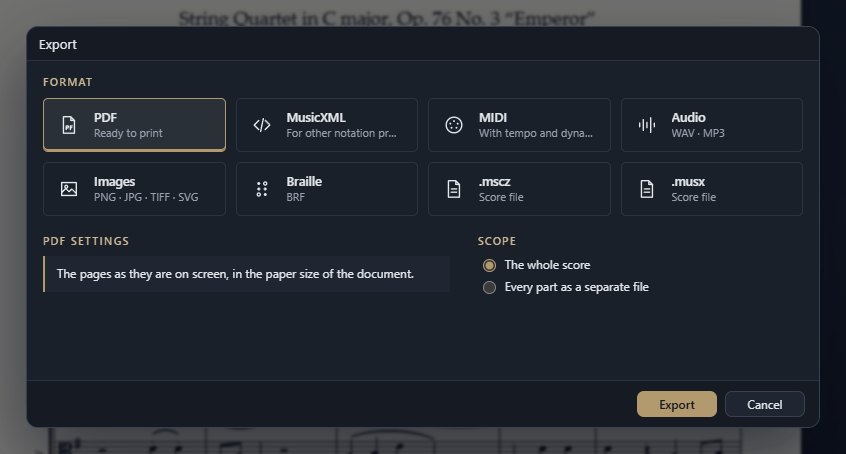
| Format | Note |
|---|---|
| The pages as on the screen, in the paper size of the document. To print: File › Print… Ctrl+P. | |
| MusicXML | For other notation programs: notes, layout and texts. |
| Compressed MusicXML (.mxl) | The same MusicXML in a much smaller file (for e-mail and sharing). |
| .mscz, .musx | Open directly in the programs that read these formats. |
| MIDI | With tempo changes and dynamics; makam accidentals as pitch bend. |
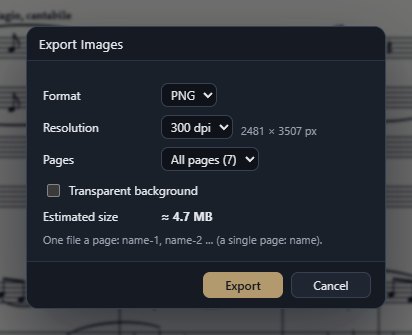
| Images | PNG, JPG, TIFF, SVG; 72–600 dpi, transparent background. |
| Audio | A recording of the playback as WAV or MP3, with the metronome clicks if you like. |
| Braille (BRF) | Braille music for blind musicians, with a Unicode preview. |
| .ly | A text file for engraving programs: notes, lyrics, chords, repeats and TAB. |
| MEI (.mei) | The format of music research and critical editions. |
Scope: export the whole score, or every part as a separate file. The paper colour is for the screen; in PDF and print the page is white.
20Playback and mixer
Space or ▶ on the play tray (top right) starts / stops playback from the selected measure. ❚❚ pauses, ■ stops, ◀◀ / ▶▶ go one measure back / forward, ⏮ / ⏭ to the beginning / end. Click the measure number in the tray, type a number (e.g. 33) and press ▶: playback starts at that measure. The tempo box sets the overall tempo; metronome marks and tempo words of the score apply where they stand. Repeats, endings, D.C. / D.S. and Coda are followed; dynamics and hairpins are heard. To play from the very beginning press ⏮, then ▶.
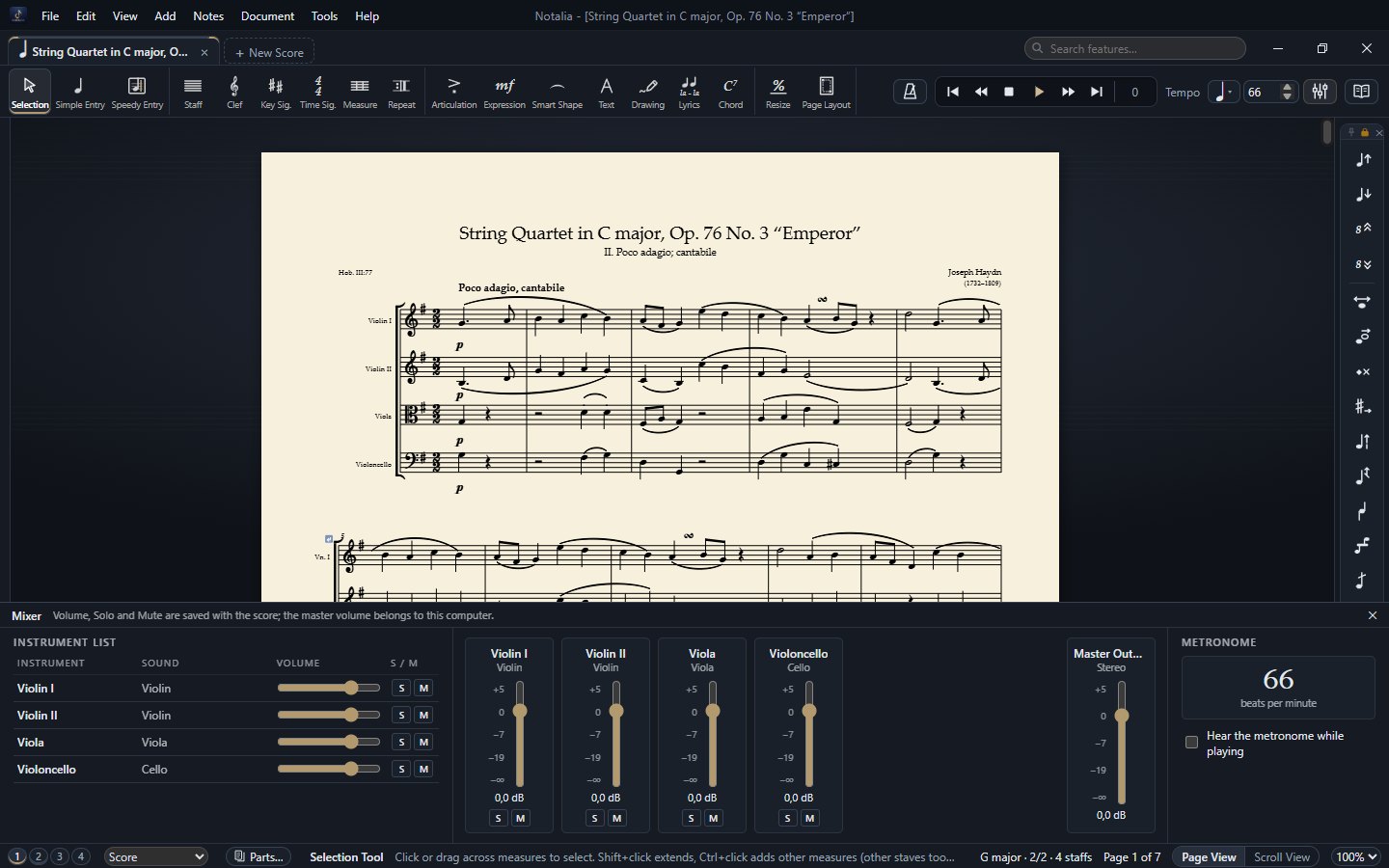
- Mixer: the mixer button at the right of the tool bar opens the sound, the volume and the S (Solo) and M (Mute) buttons of every instrument at the bottom of the window. Changes are heard at once during playback.
- Metronome: the metronome button on the tool bar, or Hear the metronome while playing in the mixer, adds clicks to the playback.
- Sounds: Notalia plays with sampled instrument sounds; the sound bank is loaded when the program starts. The audio output and the other playback settings are on the Preferences › Playback page.
- Tuning system: Document › Tuning System (.scl)… loads a
.scltuning file (for example Werckmeister, just intonation, or a 24- or 53-note makam scale). First note of the scale sets the note the scale starts on, Play the Scale lets you hear it. A twelve-note scale gives each of the twelve notes its own pitch; any other scale moves every note to the nearest note of the scale. Only the sound changes (playback, audio and MIDI export); the notes on the page stay as written. Equal Temperament removes the tuning system. Opening a.sclfile with File › Open or dropping it on the window opens the same dialog. - Makam notes play at the exact koma pitch; cue notes and TAB staves are not played.
21Turkish music
Turkish music is a natural part of Notalia; no extra setup or add-on is needed. The Turkish music sections of the palettes open only when they are needed: by themselves in a score with a makam key signature, with a click on the small arrow elsewhere.
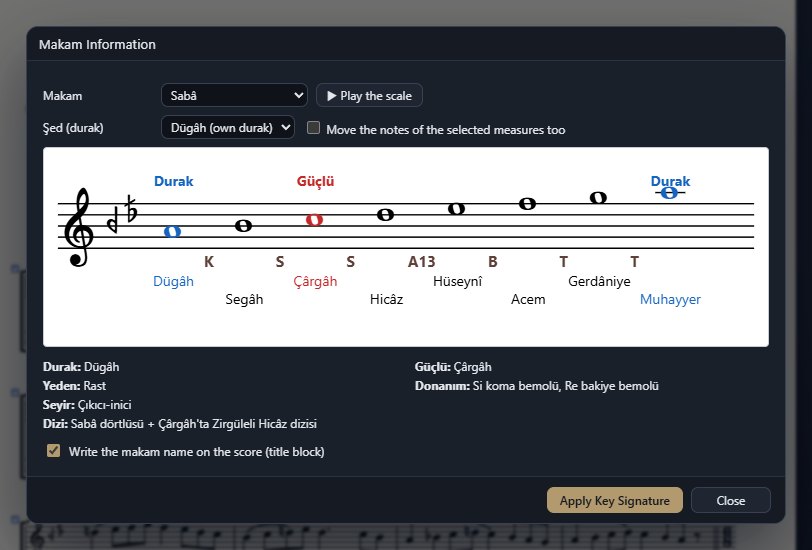
- Makam Information: the scale, durak, güçlü, yeden, seyir and key signature of 60 makams. The play button lets you hear the scale at koma precision; Şed moves the makam to another perde; the apply button writes the makam key signature into the score.
- Makam accidentals: koma, bakiye, small and large mücenneb sharps / flats are on the Simple and Speedy Entry palettes. In Turkish Music mode + and − add komas in Speedy Entry.
- Microtonal key signatures: on the Microtonal tab of the Key Signature dialog and of the wizard you pick a makam or a Turkish folk music (THM) key, or a sign for each step. The Free option lets signs of different sets share one key signature.
- Perde names: the perde name (Rast, Dügâh, Segâh…) of the selected or hovered note, or of the Speedy crosshair, shows on the status bar.
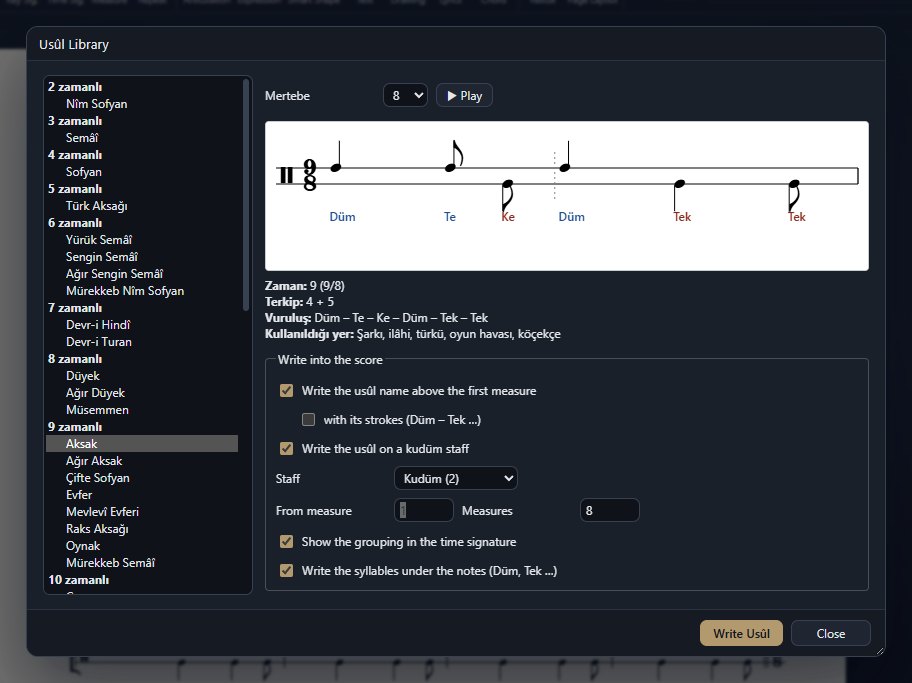
- Usûl Library: 47 usûls with their kudüm strokes. It writes the usûl into the measures you choose in one go and, if you like, adds the usûl name, the Düm–Tek syllables and a two-line kudüm staff.
- Ahenk: Document › Ahenk… sets the ahenk the piece is played in. Only the sound changes (playback, audio and MIDI export); the notes on the page stay as written.
- Instruments: ney, tanbur, kanun, oud, classical kemençe, the bağlama family, kudüm and more are in the Turkish Music family of the wizard. The Expression Tool has percussion pictograms and beater symbols.
22Bağlama: TAB and regional tavırs
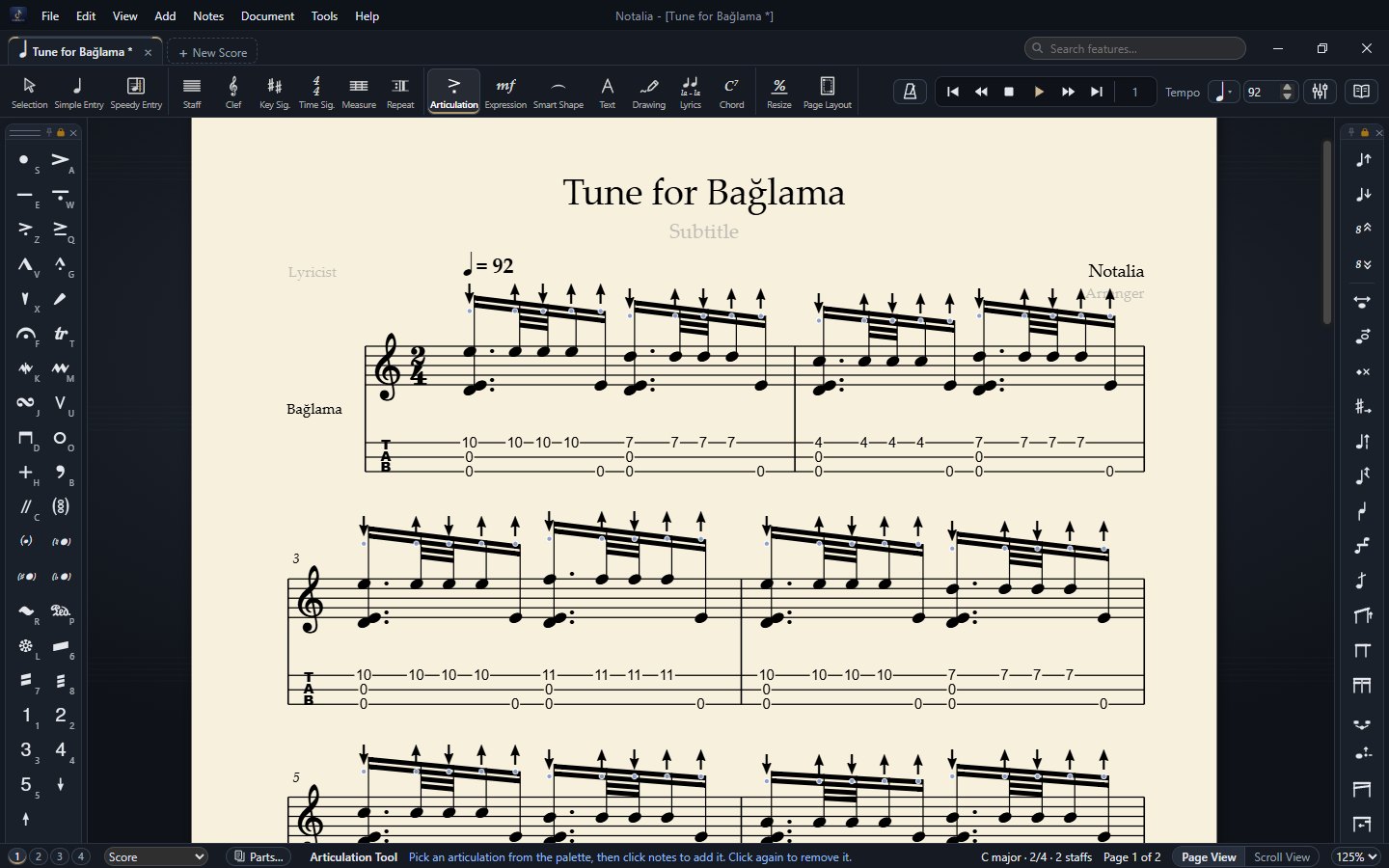
- Instrument: pick Bağlama (Saz) or Bağlama (Saz) + TAB in the wizard. The TAB has three lines and is linked to the music staff: you write the note and the fret number is found by itself.
- Tunings (düzen): Bağlama Düzeni (La - Re - Mi), Bozuk Düzen (La - Re - Sol) and Misket Düzeni (La - Re - Fa♯). Change the tuning with Notes › TAB › TAB Settings (Tuning)… The fret numbers count the koma frets of the bağlama too.
- Tezene arrows: in scores with a bağlama staff the Articulation palette has tezene down (↓) and tezene up (↑). Notes › Bağlama Tavır › Automatic Tezene writes the arrows on the selected notes by itself.
Applying a tavır
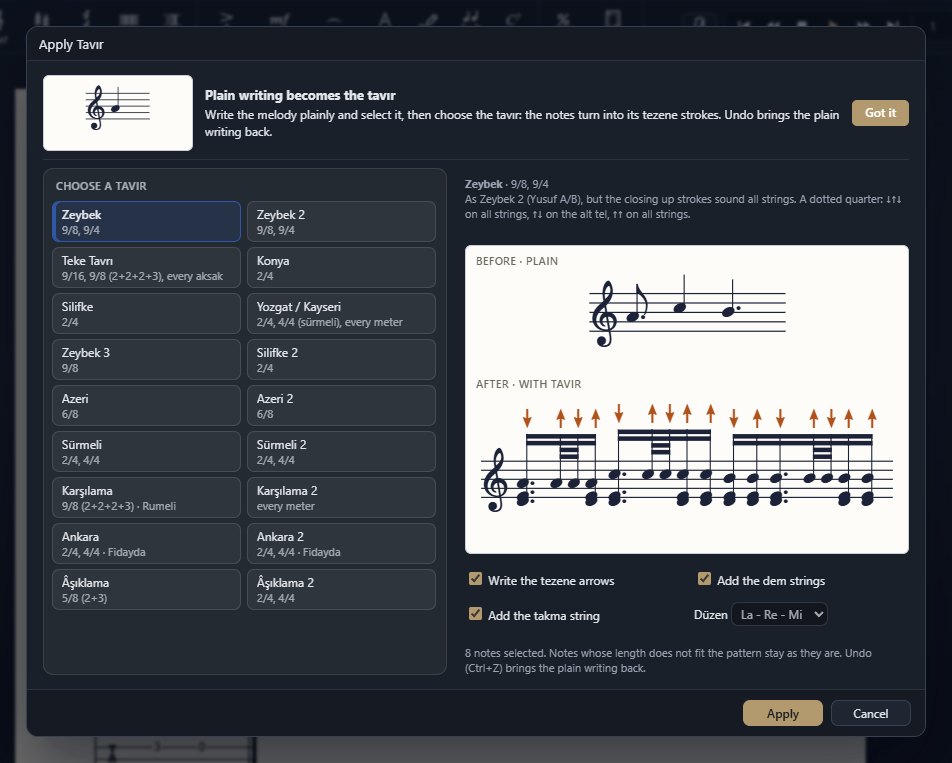
- Write the melody plainly and select it with the Selection Tool.
- Open Notes › Bağlama Tavır › Apply Tavır… and choose the tavır: there are 18 of them — Zeybek, Teke Tavrı, Konya, Silifke, Yozgat / Kayseri, Azeri, Sürmeli, Karşılama, Ankara, Âşıklama and their variants.
- Set the options: write the tezene arrows, add the dem notes, add the takma note, and the tuning. Press the apply button: the notes turn into the tezene strokes of that tavır.
- Notes whose length does not fit the pattern stay as they are. Undo or Remove Tavır brings the plain writing back.
- Your own tavır: select a figure you have written and choose Save Selection as Tavır…; it is then in the Apply Tavır list under My tavırs, in every score.
- Create Tavır Template: while its button on the Simple Entry palette is on, an empty measure of the bağlama staff gets the tartım of the tavır chosen last; you choose each pitch with ↑ ↓ and press Enter, → skips a stroke.
- In scores without a bağlama staff the tavır commands are dimmed.
23Guitar TAB
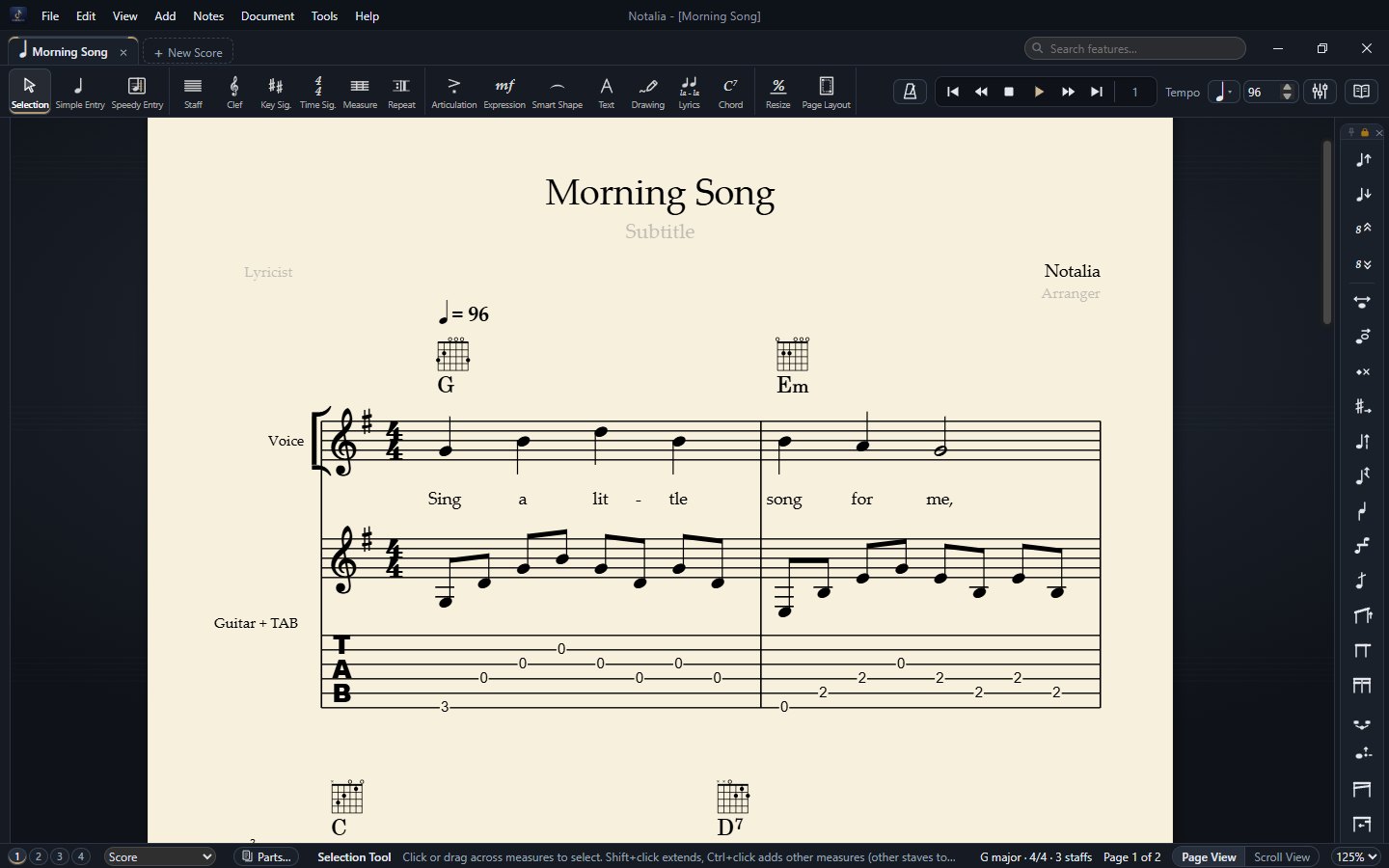
TAB shows guitar music as strings and fret numbers. In Notalia a TAB staff is linked to the music staff above it: you write the notes as usual and the TAB finds the frets itself.
- In a new score: pick Guitar + TAB, Electric Guitar + TAB, Bass Guitar + TAB or Ukulele + TAB in the instrument list.
- Under an existing staff: click the staff, then Notes › TAB › Add TAB Staff… Choose a tuning (standard, Drop D, half step down, Open G, Open D, DADGAD, 7-string, 4/5-string bass, ukulele, the bağlama tunings) or type the strings yourself, lowest first (e.g.
D2 A2 D3 G3 B3 E4). - Writing on the TAB: with Simple Entry, a click on a string of the TAB writes that open string on that string; it shows on the music staff too. A click on a fret number selects that note.
- Changing the string: select the note (one note of a chord: click its number in the TAB), then Notes › TAB › Move to Higher String / Move to Lower String. The pitch stays, the fret changes. Automatic Strings drops the strings chosen by hand.
- Bends: select the note or measures, then Notes › TAB › Bend…. Pick one of four kinds: Bend, Bend and Release, Pre-bend (the string is bent before the note sounds) or Pre-bend and Release; the amount is ¼, ½, ¾, full (a whole tone), 1½ or 2 tones. The TAB shows an arrow curving up from the fret number with its amount, the staff a small curve rising from the note, and the pitch really glides in playback. In a chord the selected note (or else the top note) is bent. Remove in the same dialog deletes the bend.
- Slides and bends to the next note: select the first note, then Slide to the Next Note (a slanted line from number to number in the TAB) or Bend to the Next Note (an arrow curving up over the staff with its amount: ½, full, 1½ …; a lower second note gives a release arrow). The same command again removes it. For hammer-ons / pull-offs join the two notes with a slur (Smart Shape Tool); the slur shows in the TAB too.
- Rhythm stems: tick Show the rhythm in TAB Settings for stems, beams, dots, small rests and tuplet numbers under the TAB (a half note a short stem, a whole note none). Handy when you work from TAB alone. With several layers the rhythm of layer 1 is shown.
- The TAB is not played (the sound comes from the music staff); tied notes show their fret in brackets; a note no string can play is marked with a red ? on screen.
- MusicXML export writes the TAB staff with its tuning, strings and frets; guitar + TAB files from other programs open as a linked TAB. To remove it: Notes › TAB › Remove TAB Staff.
24Contemporary notation
The tools contemporary pieces often need are in different places of the program; here they are together.
| What you need | Where it is |
|---|---|
| Writing without measures | The Senza misura and Cadenza buttons of the Simple Entry palette (see section 6); Document › Senza Misura (No Measures). |
| Graphic notation | The Drawing Tool (see section 11). |
| Staves with any number of lines | The Staff Setup window (see section 16). |
| Hidden measures, ossia | Right-click a measure with the Selection Tool ▸ Hide Measure, Add Ossia… |
| Notehead and stem shapes | Right-click the selection ▸ Noteheads (slash, X, diamond, triangle, square…) and Stems (dashed, wavy, slashed, none). |
| Composite and aksak meters | The Time Signature Tool and the Score Settings step of the wizard. |
| Fingering diagrams | Add › Fingering Stamps: flute, oboe, clarinet, saxophone, bassoon, recorder and brass. |
| Tremolo | Add › Easy Tremolo… |
| Fine-tuning noteheads, stems and beams | The Special Tools palette on the right edge (17 tools). |
| Percussion pictograms, beater symbols, extended techniques | The palettes of the Expression Tool and the Articulation Tool. |
25Shortcut summary
| Shortcut | Action |
|---|---|
| Ctrl+N / Ctrl+Shift+N | New document (wizard) / default document |
| Ctrl+O, Ctrl+S, Ctrl+W | Open, save, close tab |
| Ctrl+Z / Ctrl+Y | Undo / redo |
| Ctrl+C Ctrl+X Ctrl+V | Copy, cut, paste |
| Ctrl+A | Select all |
| Ctrl+E | Page / Scroll View |
| Ctrl+M | Fit Measures (Document) |
| Ctrl+P | |
| Ctrl+, | Preferences |
| Space | Play / stop |
| F1 | Simple Entry shortcuts and the gallery of hint cards |
| ↑ / ↓ (Selection) | Move measures to the previous / next system |
| Esc | Deselect, back to the Selection Tool |
26Troubleshooting
A file from another program does not open
Closed file formats (.sib, .dorico) cannot be read directly; export MusicXML or PDF as in section 18.
The layout did not come across
The MusicXML export may not have had its layout option on (e.g. Layout: Everything). When a file has no system information Notalia places the systems itself, and the status bar shows no “layout taken over” report.
The instruments do not fit on the page
Notalia does not shrink the music by itself. Click the page with the Resize Tool and enter the percentage suggested on the status bar, or choose a larger paper in Document › Page Size…
A font looks different
If the text font of the program the file comes from is not installed, Palatino is used. Install the font and import again, or double-click the text and change it.
A PDF could not be read
Notalia reads only PDFs saved by notation programs. Turn a scanned page or a photo into MusicXML with a music recognition program first, then open that file.
Reporting a problem or making a suggestion
Write your message in Help › Send Feedback…; if you like, add a picture of the window, an image (paste it with Ctrl+V) or the open score. The message goes straight to the Notalia team.
The hint cards no longer appear
Cards you closed with Got it are not shown again. To bring them all back: Help › Show the Hints Again.